



















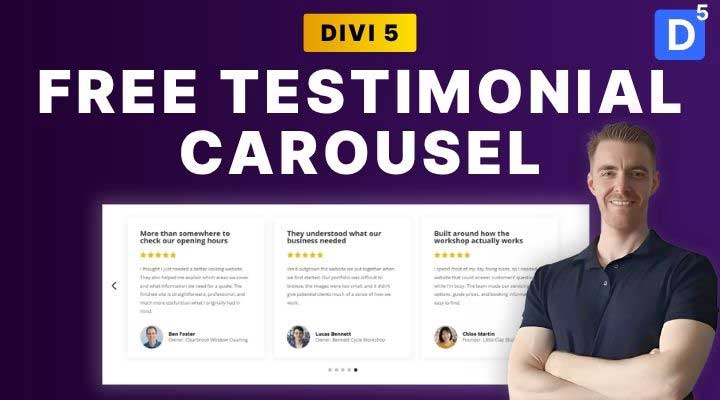
A testimonial carousel is a great way to showcase customer feedback without taking up too much space on your website. Instead of displaying a long list of reviews, visitors can browse through testimonials using navigation arrows or pagination dots.
And with Divi 5, you can create one without installing an additional carousel plugin.
To make things even easier, I've created a free testimonial carousel layout for Divi 5 that you can download and customize for your own website.
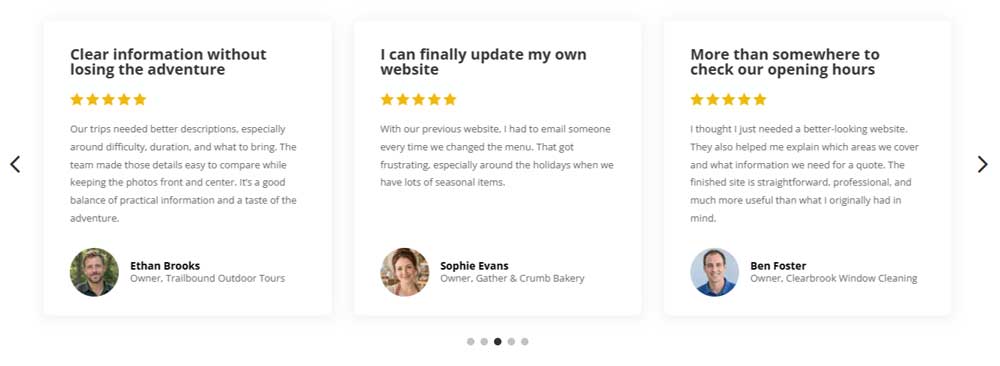
The layout includes testimonial cards with star ratings, customer photos, review text, and navigation controls. Everything is built using Divi 5's native modules, so you can change the design directly in the Visual Builder.
In this tutorial, I'll show you how to download the layout, import it into Divi 5, customize the testimonials, and adjust the carousel settings for different screen sizes.
Watch the Video Tutorial
In the video, I walk you through the complete process, from downloading the free layout to customizing the carousel and making it responsive.
If you prefer written instructions, follow the steps below.
Download the Free Divi 5 Testimonial Carousel
You don't have to build this design from scratch. I've already created a ready-to-use testimonial carousel that you can import into your Divi 5 website.
The layout includes:
- Three testimonial cards displayed on desktop
- Five-star ratings
- Testimonial headlines and review text
- Customer profile photos, names, and job titles
- Previous and next navigation arrows
- Pagination dots
- Responsive layouts for tablets and mobile devices
Get the Free Layout
You can download the testimonial carousel from my Free Membership area.
If you already have an account, simply log in. Otherwise, you can create a free membership account in just a few steps.
Once you're logged in, visit the Free Membership page and scroll down to the Resources From Tutorials section.
Find the Free Testimonial Carousel resource and click the download button.
Download the Free Testimonial Carousel
The layout is completely free. You only need Divi 5 to use it, and there's no need to purchase Divi Review Builder or another plugin.
Step 1: Extract the Downloaded ZIP File
After downloading the layout, you'll have a ZIP file called Free testimonial carousel layout.zip.
Before importing the layout into Divi, you'll need to extract this file.
On Windows, right-click the ZIP file and select Extract All.
Open the extracted folder, where you'll find the JSON file containing the testimonial carousel layout.
This JSON file is what we'll import into the Divi Library.
You don't need to upload the ZIP file as a WordPress plugin or theme.
Step 2: Import the Testimonial Carousel into Divi 5
Now let's import the layout into your website.
From your WordPress dashboard, navigate to Divi → Divi Library.
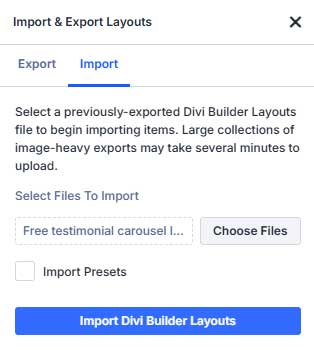
At the top of the page, click the Import & Export button.
In the popup window:
- Switch to the Import tab.
- Click Choose File.
- Select the JSON file you extracted earlier.
- Click Import Divi Builder Layouts.
Once the import is complete, the testimonial carousel is available in your Divi Library.
Because the layout was saved as a Divi section, you can insert it into an existing page without having to recreate the design.
Add the Carousel to a Page
Open the page where you want to display your testimonials and launch the Divi 5 Visual Builder.
Click the button to add a new section, then choose Add From Library.
Find the imported testimonial carousel and select it to insert the section.
You should now see the complete carousel on your page, including the testimonial cards, star ratings, customer photos, navigation arrows, and pagination dots.
Save the page and preview it on the front end to make sure everything is working correctly.
Step 3: Understand How the Carousel Is Built
One of the advantages of this layout is that it uses Divi 5's native Group Carousel module.
The Group Carousel allows you to combine multiple Divi modules inside individual slides and display them as a carousel.
That means you're not restricted to a predefined testimonial design.
You can arrange and style the content however you like.
Explore the Layout Structure
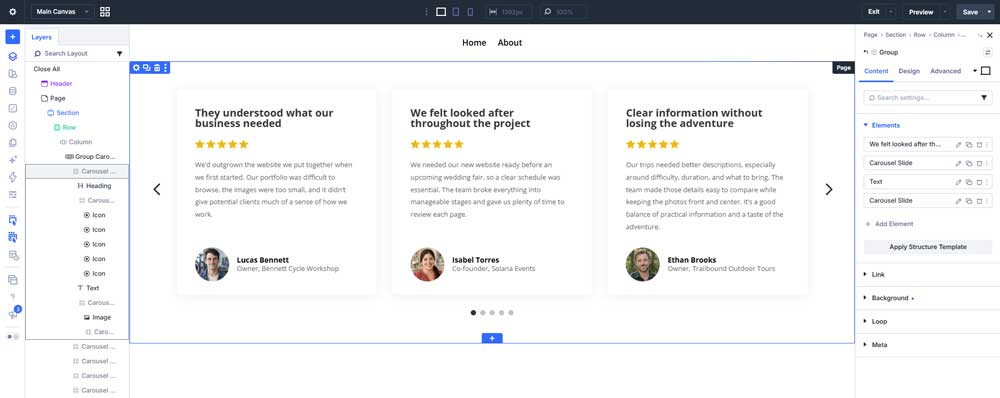
Open the Layers panel in the Divi 5 Visual Builder.
You'll see that the layout contains a regular Section and Row, with a Group Carousel module inside.
Expand the Group Carousel, and you'll find the individual Carousel Slides.
Each slide contains the elements needed to display a testimonial.
For example, the included testimonial cards use:
- Heading module: Displays the testimonial title.
- Icon modules: Create the five-star rating.
- Text module: Contains the customer's review.
- Image module: Displays the customer profile picture.
- Text modules: Display the customer's name and job title.
Because these are regular Divi modules, you can edit and style them independently.
You can also add more modules to a slide if you want to create a different testimonial design.
Step 4: Customize Your Testimonials
Now that you understand the layout structure, let's customize one of the testimonial cards.
Change the Testimonial Text
Start by selecting the testimonial Heading module.
Open its settings and replace the sample title with your own.
Next, open the Text module containing the review and replace the sample content with a genuine testimonial from your customer.
You can also adjust the typography, including font size, color, weight, and spacing.
Replace the Customer Photo and Details
At the bottom of each testimonial card, you'll find the customer's profile picture, name, and job title.
Select the Image module to replace the sample portrait with your own image.
You can choose an existing image from the WordPress Media Library or upload a new one.
Next, update the customer's name and job title using their Text modules.
Customize the Star Rating
The layout uses five separate Icon modules to create the star rating.
Each icon can be customized individually.
For example, you can change the star color, adjust its size, or create a four-star rating by changing the appearance of the fifth star.
Change the Card Design
You can also customize the appearance of the testimonial cards to match your website.
The Group Carousel's Design settings include controls for group styling, backgrounds, borders, spacing, and more.
For individual adjustments, open the settings of a specific Carousel Slide.
You can also customize the typography and spacing of the modules inside each card.
Add More Testimonials
Need to display additional reviews?
You can duplicate an existing Carousel Slide and replace its content with another testimonial.
This is a quick way to maintain consistent styling across all your cards.
Just remember that the free layout uses manually entered testimonials. If you edit a customer review later, you'll need to update that content yourself.
Step 5: Customize the Carousel Settings
Next, let's look at how to control the carousel's behavior.
Open the Group Carousel module and navigate to Content → Carousel Settings.
Here you'll find several useful options.
Slides to Show
This controls how many testimonials are displayed at the same time.
The free layout uses three visible testimonials on desktop, but you can change this to two or even one.
Slides to Scroll
This determines how many testimonials move when someone clicks a navigation arrow.
For example, setting Slides to Scroll to one moves the carousel forward by one testimonial.
Setting it to two moves it forward by two testimonials.
I generally prefer scrolling one testimonial at a time because it makes it easier for visitors to explore the reviews.
Automatic Rotation
The Automatic Rotation option allows the carousel to move between testimonials automatically.
While this can work well for certain designs, I prefer leaving it disabled for longer reviews.
This gives visitors enough time to read the testimonial without the carousel moving unexpectedly.
Transition Speed
You can also control how quickly the carousel transitions between slides.
A smooth, moderate transition usually works best for testimonials.
Navigation Arrows and Pagination Dots
Under Content → Elements, you can enable or disable the navigation arrows and pagination dots.
You can also choose different icons for the arrows.
Under the Design tab, you can customize the arrow colors, sizes, and positions, along with the dot navigation styling.
For this layout, I've positioned the arrows on the sides and the pagination dots underneath the testimonial cards.
Step 6: Make the Testimonial Carousel Responsive
A carousel that looks great on desktop won't necessarily work well on a smaller screen.
Fortunately, Divi 5 allows you to adjust the number of visible slides for different devices.
For this testimonial layout, I recommend:
| Device | Slides to Show |
|---|---|
| Desktop | 3 |
| Tablet | 2 |
| Mobile | 1 |
To adjust these values, switch to Tablet or Phone View in the Divi 5 Visual Builder.
Open the Group Carousel settings and use the responsive controls for Slides to Show.
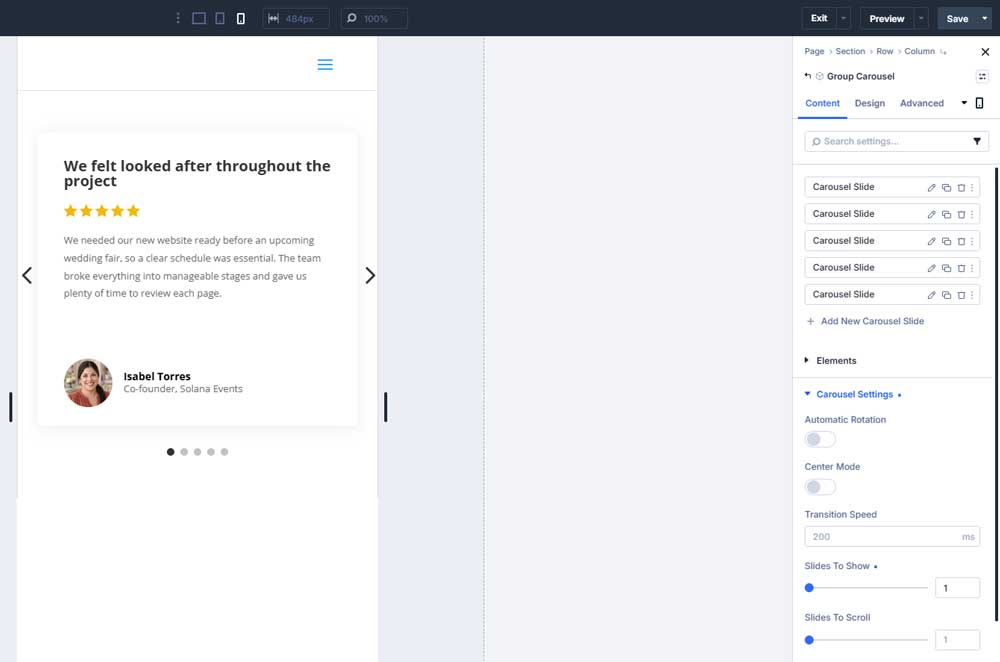
On tablets, displaying two testimonials gives each card more room.
On mobile devices, displaying one testimonial at a time makes the content much easier to read.
You can also customize mobile font sizes, spacing, and navigation placement if needed.
Once you're happy with the design, save the page and test the carousel on the front end.
Make sure the navigation works correctly and that the testimonial text and customer information remain readable across different screen sizes.
Need More Advanced Testimonial Features?
The free Divi 5 testimonial carousel is a great solution if you have a handful of customer reviews and want to display them in a clean, professional layout.
But what if you want to collect new reviews, manage testimonials from one central location, or display the same reviews across different sections of your website?
That's where my Divi Review Builder plugin comes in.
Divi Review Builder is a separate premium plugin built specifically for Divi 5.
It allows you to collect, manage, and display customer reviews using different layouts, including:
- Review Carousels
- Walls of Love
- Scrolling Review Marquees
- Single Review Sliders
- Rating summaries and badges
- Review collection forms
You can also create reviews containing images and videos, and manage customer feedback directly from your WordPress dashboard.
If you only need a simple testimonial carousel, the free layout in this tutorial is all you need.
But if you're managing larger numbers of reviews or want more advanced functionality, Divi Review Builder gives you additional options.
Explore Divi Review Builder on DiviForge
You can also read my complete Divi 5 customer reviews tutorial to see how the plugin works.
Frequently Asked Questions
Yes. Divi 5 includes a native Group Carousel module that allows you to create testimonial carousels using regular Divi modules. The free layout in this tutorial uses this built-in functionality.
Yes. You can download it through my Free Membership area without purchasing an additional plugin. You'll need a free membership account and an active Divi 5 installation.
Absolutely. You can edit the testimonial text, star ratings, profile photos, typography, backgrounds, spacing, and carousel behavior directly inside the Divi 5 Visual Builder.
Yes. You can adjust how many slides appear on desktop, tablet, and mobile, along with other responsive styling settings.
No. The free layout uses manually entered testimonials, so you'll need to edit them in Divi when the content changes. For centralized review management and more advanced displays, you can use Divi Review Builder.
No. This layout was created specifically for Divi 5 and uses its native Group Carousel module.
Final Thoughts
Adding a testimonial carousel is an easy way to showcase customer feedback and help visitors learn more about the experiences of your previous customers.
With Divi 5's Group Carousel module, you can create a flexible testimonial design without needing an additional plugin.
And with the free layout I've provided, you can skip the initial design work and start customizing the carousel right away.
Download the Free Divi 5 Testimonial Carousel
If you found this tutorial helpful, be sure to check out my other Divi tutorials for more tips, layouts, and resources.