



























Customer reviews are one of the best ways to build trust with potential customers. Whether you’re creating a website for your own business or building sites for clients, showcasing genuine customer feedback can help visitors feel more confident about choosing your services.
But collecting and managing testimonials isn’t always straightforward.
You might have reviews scattered across emails, manually created testimonial modules, or different pages of your website. And every time you want to update a review or change its appearance, you have to make those changes yourself.
That’s why I created Divi Review Builder, a plugin built specifically for Divi 5 that makes it easier to collect, manage, and display customer reviews.
In this tutorial, I’ll show you how to create review collection pages, manage testimonials from your WordPress dashboard, and display them using beautiful layouts such as carousels, Walls of Love, scrolling marquees, and more.
The best part? You can customize everything directly inside the Divi 5 Visual Builder.
Watch the Video Tutorial
In the video above, I walk you through the complete process, from adding your first review to creating fully customized testimonial layouts.
If you prefer written instructions, follow the steps below.
Why Use a Dedicated Review Builder?
Divi already allows you to create testimonials using its built-in modules. For a website with just a handful of reviews, that might be all you need.
If you only need a simple testimonial slider and prefer not to use an additional plugin, you can also follow my tutorial on how to create a Divi testimonial slider without a plugin.
However, if you want to collect customer reviews, manage them centrally, and reuse them across multiple layouts, a dedicated review builder offers much more flexibility.
But things become more complicated when you’re working with larger collections of customer feedback.
For example, imagine you have 50 customer reviews that you want to display across several pages.
You might want to feature selected testimonials on your homepage, create a dedicated reviews page, and display different reviews on individual service pages.
Manually recreating and maintaining those testimonials can quickly become time-consuming.
Divi Review Builder solves this by giving you a central place to manage your reviews in WordPress.
Instead of storing each testimonial separately inside your page designs, you can manage your reviews independently and reuse them across different layouts.
And displaying reviews is only half the story.
Divi Review Builder also helps you collect new testimonials directly from your customers.
You can create dedicated review collection pages, share a link with customers, and guide them through submitting their feedback.
This is especially useful when you want to collect more detailed written feedback, images, or video testimonials.
Let’s take a look at how it works.
Step 1: Add and Manage Customer Reviews in WordPress
After installing and activating Divi Review Builder, you’ll have access to a dedicated review management area in your WordPress dashboard.
From here, you can create, edit, organize, and manage your customer reviews.
To get started, create a new review and enter the customer’s information.
Depending on your needs, a review can include:
- Customer name and profile picture
- Written testimonial
- Star rating
- Company information
- Images or video content
Once you’ve entered the information, publish the review.
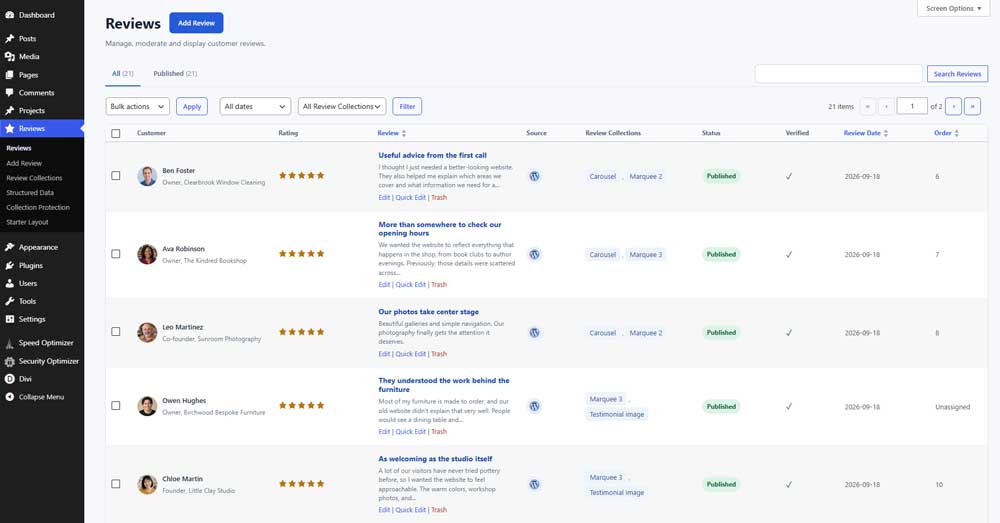
Your review is now available to use in your Divi layouts.
One of the advantages of this approach is that you don’t need to recreate the same review every time you want to display it somewhere else.
For example, you could show a customer’s feedback in a carousel on your homepage and include that same review in a larger testimonial wall on another page.
This makes managing testimonials much easier, especially when you’re building websites with lots of customer feedback.
Step 2: Collect Reviews Directly From Your Website
Manually adding reviews is useful when you already have customer testimonials.
But what if you want to collect new reviews?
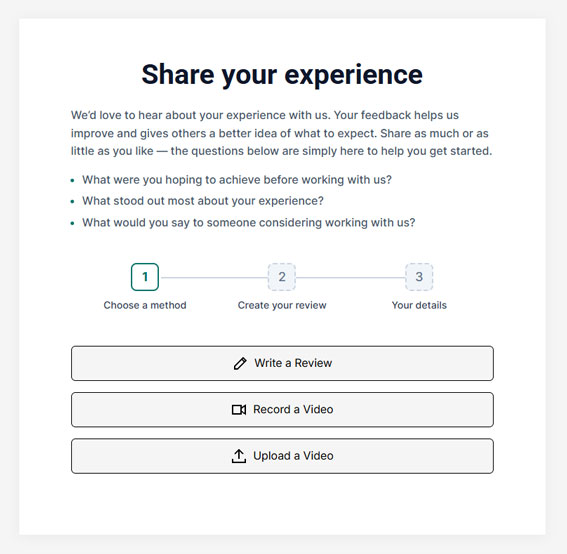
Instead of asking customers to email their feedback, Divi Review Builder allows you to create dedicated review collection pages.
These pages provide a simple way for customers to share their experiences directly on your website.
You can collect customer details, star ratings, and written feedback.
You can also include specific questions to help customers write more useful testimonials.
For example, you could ask:
- What did you enjoy most about our service?
- How did our product or service help you?
- Would you recommend us to others?
These questions give customers a starting point, which can make leaving a review feel much easier.
Make Collecting Video Testimonials Easier
Video testimonials can be especially powerful because visitors get to hear directly from real customers.
However, asking customers to record and send videos can sometimes be a challenge.
Having a dedicated review collection page gives customers a clear place to provide their feedback and submit supported media.
It’s a much more organized approach than trying to collect testimonials through scattered email conversations.
Review Submissions Before Publishing
Once a customer submits their review, you can manage the submission from your WordPress dashboard.
This allows you to check the review details before deciding whether to publish it.
You remain in control of what appears on your website, while making the submission process straightforward for customers.
For genuine reviews, it’s important to preserve the customer’s feedback accurately rather than selectively editing it to change its meaning.
Step 3: Import a Ready-Made Review Layout
Now that we have some reviews, it’s time to display them.
Divi Review Builder comes with a collection of ready-made layouts to help you get started without designing everything from scratch.
These include:
- Review carousels
- Wall of Love layouts
- Scrolling review marquees
- Single review sliders
- Rating displays
- Review collection page designs
You can import a layout, open it inside the Divi 5 Visual Builder, and customize it to suit your website.
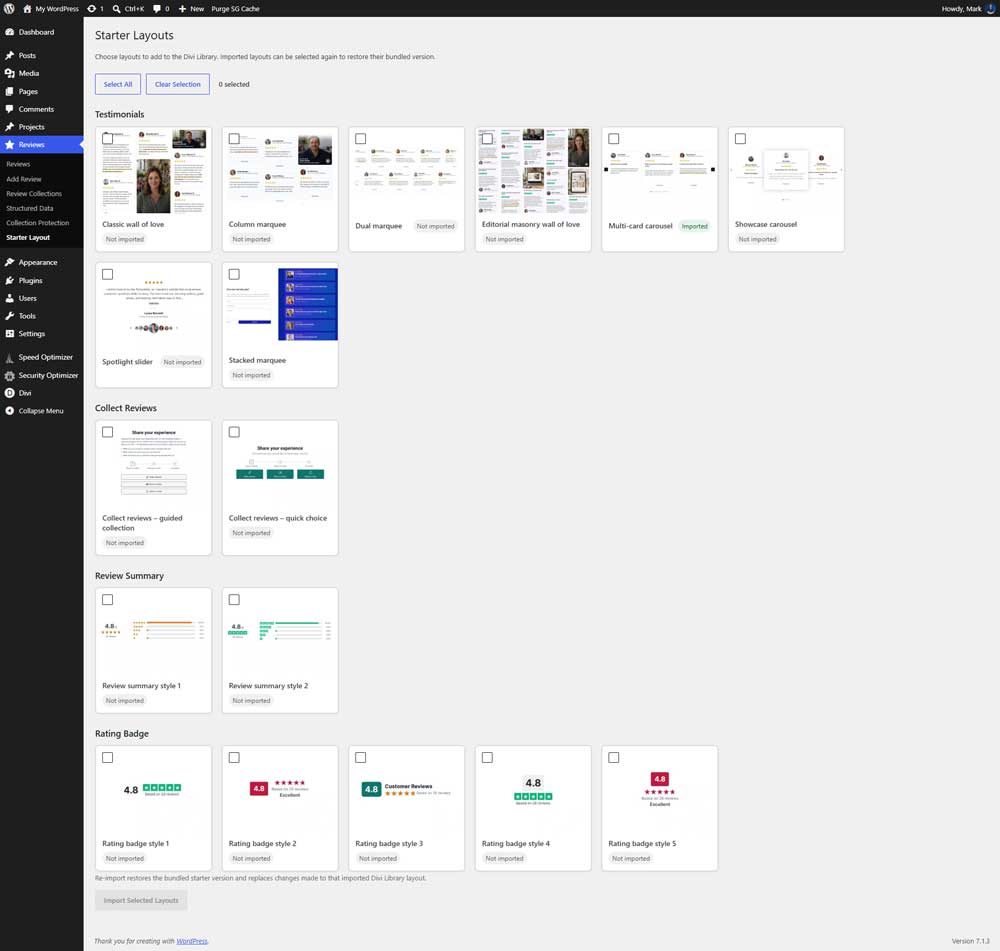
Once imported, the layout can use your existing review content, so you don’t have to manually enter every testimonial again.
Of course, you’re not limited to the included layouts. You can also create your own designs using the plugin’s Divi 5 modules.
Let’s explore a few of the available options.
Step 4: Create a Testimonial Carousel in Divi 5
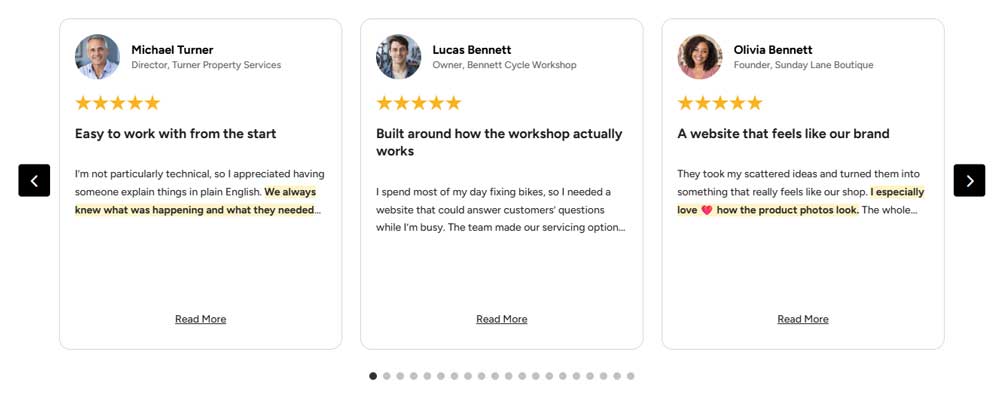
A testimonial carousel is a great way to display multiple customer reviews without taking up too much space on your website.
For this example, we’ll use one of the ready-made Review Carousel layouts.
After importing the layout, open the page inside the Divi 5 Visual Builder.
From here, you can customize the carousel to match your website’s design.
For example, you can adjust the card backgrounds, typography, spacing, star ratings, and other available design settings.
Display Longer Reviews With Read More
One particularly useful feature is the Read More option.
Sometimes customers leave detailed reviews that contain several paragraphs.
Displaying the entire review inside a carousel card can make the design unnecessarily tall.
With Divi Review Builder, you can display a shorter preview while still allowing visitors to read the complete testimonial.
There are two different ways to handle this.
Expandable Reviews
The Multi-Card Carousel and Spotlight Carousel support expandable reviews.
When a visitor clicks Read More, the review expands directly inside the card, revealing the remaining text.
This keeps the initial layout compact while allowing interested visitors to read the complete review.
Review Popups
The Showcase Carousel offers a different approach.
Instead of expanding the card, clicking Read More opens the complete testimonial in a popup.
You can customize the popup’s appearance to match your website, giving you additional control over how longer customer reviews are presented.
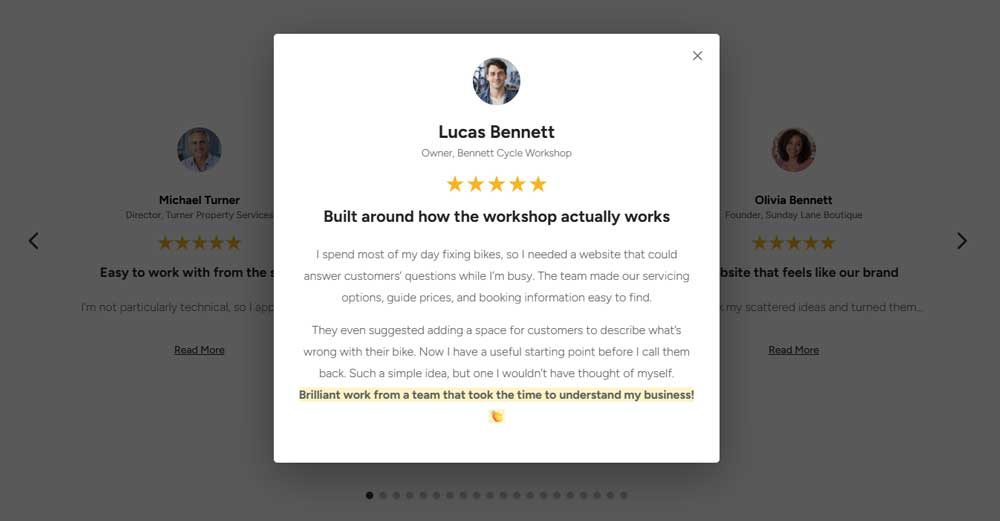
These options are particularly useful when your reviews have different lengths and you want to maintain a clean, consistent carousel design.
Step 5: Create a Wall of Love
If you want to display a larger collection of testimonials, a Wall of Love is an excellent option.
Instead of showing one or two reviews at a time, a Wall of Love displays multiple testimonials together in a visually interesting arrangement.
This works particularly well for businesses that have collected a good number of customer reviews.
For example, you could create a dedicated customer testimonials page or add a smaller review wall to your homepage.
Divi Review Builder includes different Wall of Love designs, including Classic Masonry and Editorial Masonry styles.

You can customize the review cards to create different appearances.
For a minimal website, you might prefer white cards, subtle borders, and clean typography.
For a more colorful design, you could use background colors, rounded corners, and larger profile pictures.
This gives you the freedom to create a testimonial section that matches the overall style of your website.
Step 6: Create Scrolling Review Marquees and Sliders
If you’re looking for something a little more interactive, Divi Review Builder also includes scrolling review marquees.
A marquee continuously moves customer testimonials across the page.
One of my favorite designs features two rows of reviews moving in opposite directions.
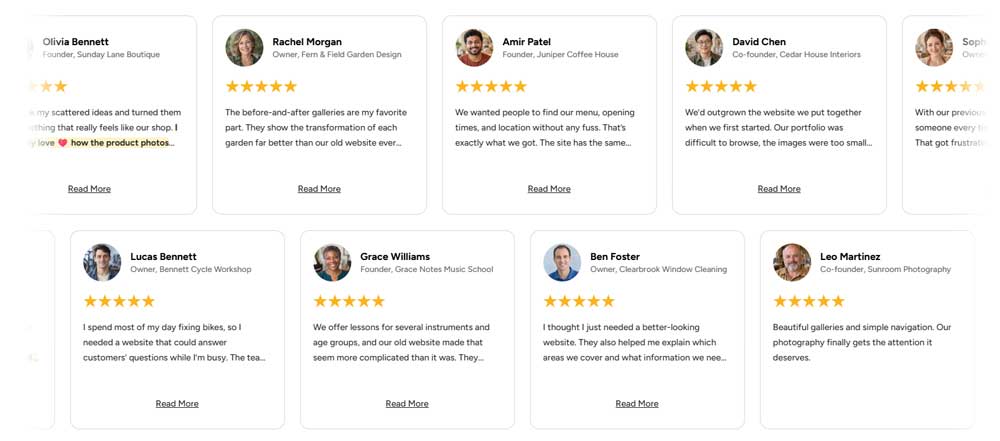
This style works particularly well for modern landing pages, creative agencies, and websites where you want to add subtle movement.
You can also use a more minimal marquee design if you prefer something simpler.
Highlight Individual Reviews With a Slider
Another option is the Single Review Slider.
This layout displays one testimonial at a time, allowing visitors to focus on an individual customer’s feedback before moving to the next review.
It’s a great choice for longer testimonials or customer stories that deserve a little more attention.
Step 7: Add Images and Videos to Your Reviews
Customer testimonials don’t always have to be just text.
Adding images or video can make reviews more engaging and provide valuable context.
For example:
A contractor could display a customer’s review alongside a photograph of the completed renovation.
A web design agency could show a screenshot of the website they created for a client.
Or a business could feature a video testimonial from a happy customer.
Divi Review Builder supports review media, including images and videos.

These features give you more flexibility when creating testimonial sections and make it possible to showcase customer experiences in different ways.
Step 8: Display Star Ratings and Review Summaries
Besides displaying individual reviews, you might also want to show an overview of your customer ratings.
For example, you could display the average star rating near the top of your homepage.
Or create a review summary showing the number of reviews and a breakdown of their ratings.
Divi Review Builder includes modules for creating these types of displays.
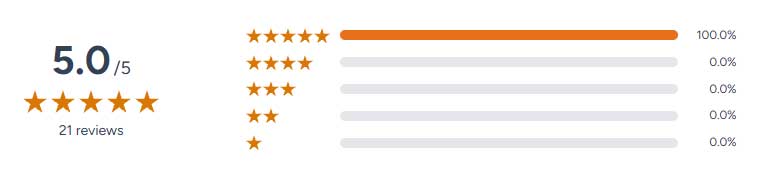
You can customize the colors, typography, star appearance, spacing, and layout to match your website.
Rating summaries work particularly well when combined with other testimonial designs.
For example, you could show a compact rating summary in your hero section, a review carousel further down the page, and a complete Wall of Love on your testimonials page.
Because these elements use your centrally managed review data, you don’t have to maintain separate copies of the same information throughout your website.
Get Started With Divi Review Builder
Divi Review Builder was created to make collecting, managing, and displaying customer feedback easier for Divi 5 users.
Instead of manually building individual testimonial sections and maintaining them across multiple pages, you can manage your reviews in one place and use them in a variety of customizable layouts.
Whether you’re creating a simple testimonial carousel, a dedicated reviews page, or an interactive Wall of Love, the plugin gives you the flexibility to create designs that match your website.
You can also get started quickly with the included ready-made layouts.
Want to try Divi Review Builder on your own website?
Explore Divi Review Builder on DiviForge
You can explore the available features, view the demo designs, and find out more about the plugin.
Already an All Access Member?
If you have an All Access Membership from MarkHendriksen.com, Divi Review Builder is included with your membership at no additional cost.
You can download it directly from your member area.
Final Thoughts
Customer reviews can be an important part of building trust on your website.
But collecting those reviews and displaying them effectively shouldn’t become another time-consuming task.
With Divi Review Builder, you can create a more organized workflow for managing customer feedback while having plenty of design options available inside Divi 5.
I’ll also be publishing more tutorials covering specific features, including creating custom testimonial carousels, Walls of Love, and scrolling review marquees.
If you haven’t already, subscribe to my YouTube channel for more Divi 5 tutorials and website-building tips.