


















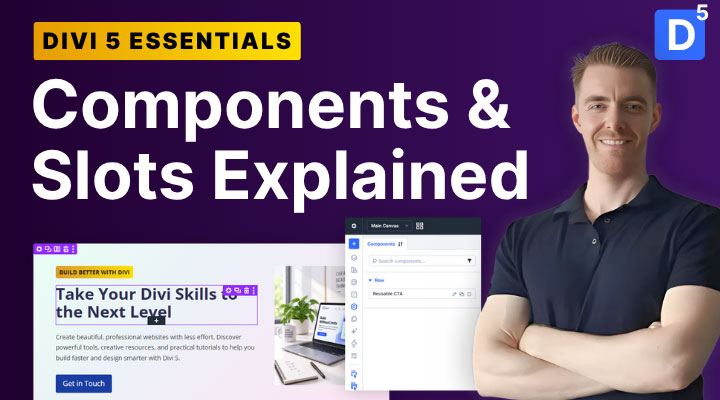
Divi 5 has introduced Components and Slots, two powerful features that make creating and managing reusable website designs easier than ever.
If you've worked with Global Modules in previous versions of Divi, you're probably familiar with the idea of creating an element once and reusing it across multiple pages.
Components take that concept much further.
You can now create reusable sections, rows, and modules, control which settings stay synchronized, and even display completely different content inside the same Component.
In this tutorial, I'll show you how Divi 5 Components and Slots work, how to create your first Component, and how to combine them with Selective Sync to build flexible, reusable layouts.
Watch the Divi 5 Components & Slots Video Tutorial
In the video above, I walk through the complete process using a reusable call-to-action section. You'll see how to create Components, customize individual instances, add Slots, and manage your Components in Divi 5.
Prefer written instructions? Follow the steps below.
What Are Components in Divi 5?
Components are reusable design elements that stay connected across your website.
You can create a Component from a single module, an entire row, or a complete section.
For example, imagine you've designed a call-to-action section with a heading, description, button, and image.
You want to use that same section on five different pages.
Instead of recreating the design every time, you can save it as a Component and insert it wherever you need it.
Whenever you edit the shared Component, the changes are automatically applied to every connected instance.
This makes Components particularly useful for:
- Call-to-action sections
- Reusable hero layouts
- Promotional banners
- Feature and service cards
- Consistent website elements across multiple pages
But what makes Divi 5 Components especially interesting is the ability to customize individual instances without losing their connection to the original design.
That's where Selective Sync and Slots come in.
How to Create a Component in Divi 5
Let's start by turning an existing section into a reusable Component.
For this example, I'm using a two-column call-to-action section.
The left column contains a heading, description, and button. The right column displays an image.

Step 1: Save Your Section as a Component
Open your page in the Divi 5 Visual Builder.
Right-click the section you want to reuse and select Save to Library.
Give it a recognizable name. For this tutorial, I'm using "Reusable CTA".
Next, enable the Save as Component option and save it to the Divi Library.
Your section is now a reusable Component.
You'll notice that Divi uses a purple outline to identify Components inside the Visual Builder.
Step 2: Reuse the Component on Another Page
Open another page in the Visual Builder.
Click Add Section and select the Add From Library tab.
Find your saved Component and insert it into the page.
Your entire design will appear, including its styling, modules, and content.
The important part is that this isn't just a copy of your original section.
It's a connected instance of the same Component.
How to Edit Components Globally
Now that we've placed our Component on two pages, let's see how global editing works.
Open the settings of your Component.
Click the Component name at the top of the settings panel and choose Edit Component.
This opens Component editing mode, where you can modify the shared design.
For example, try changing the section's background color or increasing its padding.
Save the Component and confirm the changes.
Now visit the other page where you inserted the Component.
You'll see that the changes have been applied there too.
This is one of the biggest benefits of Components. You can maintain a consistent design across your website without manually updating every page.
Customize Individual Components With Selective Sync
Global synchronization is useful, but sometimes you need certain content to be different.
Imagine you're using the same call-to-action design across several pages.
You want every section to have identical colors, typography, spacing, and button styling.
However, each page needs a different heading and button link.
Selective Sync makes this possible.
Step 1: Choose Which Settings Can Be Customized
Open your Component and enter Component editing mode.
Select the module containing your heading.
Find its content setting and hover over the setting label to reveal the synchronization icon.
Click the icon to make that setting editable on individual instances.
Repeat this for any other settings you want to customize, such as:
- Heading text
- Button text
- Button link URL
Save the Component and confirm the changes.
Step 2: Customize an Individual Instance
Now open another page containing your Component.
You can edit the settings you just made available without changing the original Component.
For example:
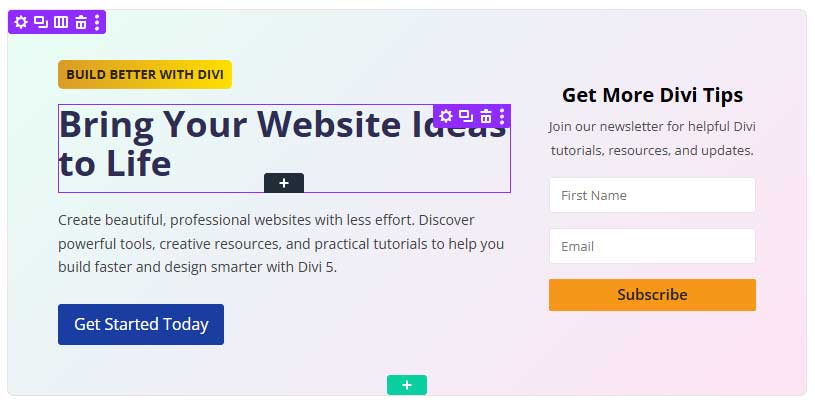
Page 1
Heading: Bring Your Website Ideas to Life
Button: Explore Our Resources
Page 2
Heading: Take Your Divi Skills to the Next Level
Button: Get Started Today
Both pages still use the same Component.
Their design remains synchronized, while the selected content can be customized independently.
Another useful feature is that editable settings inherit their values from the original Component until you override them.
This means you don't have to enter different values on every page unless you actually need them.
What Are Slots in Divi 5?
Slots take reusable Components one step further.
While Selective Sync allows you to customize individual settings, Slots allow you to place entirely different modules and layouts inside the same Component.
A Slot is a special container that you add inside a Component.
The Slot's position and surrounding design remain part of the shared Component, but the content placed inside it belongs to each individual page.
For example, you could create a reusable hero section with a Slot in the right column.
On one page, that Slot could contain an image.
On another page, it could contain an Email Opt-in Module.
And on a third page, it could contain a video or another collection of modules.
All three pages would continue using the same shared Component design.
How to Use Slots in Divi 5
Let's continue with our call-to-action Component.
Currently, we have an image in the right column. We're going to replace that image with a Slot so that each page can display different content.
Step 1: Add a Slot to Your Component
Open your Component in editing mode.
Remove the existing Image Module from the right column.
Click the Add Module button and select Slot.
The Slot Module works similarly to a Group Module and can contain different types of modules and layouts.
Save your Component.
Because the Slot is part of the shared structure, it will appear in every instance of that Component.
Step 2: Add an Image on the First Page
Return to your first page.
Inside the Slot, add an Image Module.
Choose the image you want to display and adjust its styling if necessary.
Save the page.
Step 3: Add an Email Form on the Second Page
Now open the second page.
You'll see the same Component with an empty Slot.
Instead of adding an image, insert an Email Opt-in Module.
Customize the heading, description, and form styling to match your website.
Save the page.
You now have two instances of the same Component, each containing completely different content.
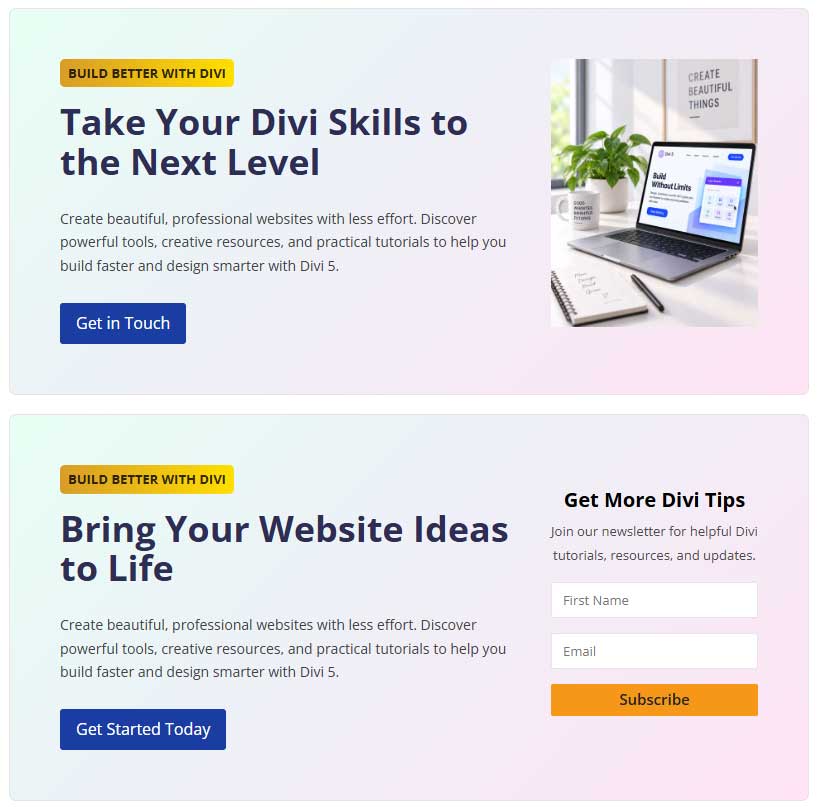
The surrounding layout remains synchronized.
If you change the Component's background, spacing, or other shared settings, those changes still apply to both pages.
However, the image and email form remain independent.
That's what makes Slots so useful for building flexible, reusable layouts.
Tip: You can add multiple Slots inside a Component when you need several independently customizable content areas.
Managing Components in Divi 5
Divi 5 also includes a dedicated Components Manager.
You can open it directly from the Visual Builder sidebar.
The Components Manager gives you a central place to organize and maintain your reusable designs.
From here, you can:
- Search for existing Components
- Edit Components in a separate preview
- Duplicate Components
- Reorder Components
- Delete Components you no longer need
- Import and export your Component library
This is particularly useful when you're building larger websites or working on multiple projects.
You can also nest Components inside other Components, allowing you to build more advanced design systems from smaller reusable elements.
Components vs Presets vs Variables vs Slots
Divi 5 now offers several different tools for creating consistent website designs.
Here's a quick breakdown of how they differ.
| Feature | What it does |
|---|---|
| Variables | Store reusable values such as colors, fonts, and spacing values. |
| Presets | Save reusable collections of styling and other element settings. |
| Components | Create reusable elements and layouts that stay connected across your website. |
| Slots | Allow unique content inside otherwise synchronized Components. |
These features are designed to work together.
For example, you could use Variables for your brand colors, Presets for button styling, Components for reusable call-to-action sections, and Slots for page-specific content.
The result is a more consistent and flexible website that's easier to maintain.
When Should You Use Components and Slots?
Components are useful whenever you need to reuse the same design across multiple pages.
For a small website, that might mean a few shared call-to-action sections or promotional banners.
For larger websites, Components can become the foundation of an entire reusable design system.
Slots are particularly helpful when your shared layouts need more flexibility than Selective Sync alone can provide.
For example, a reusable service card might need different content on every page, while its border, background, padding, and overall structure remain consistent.
Instead of creating dozens of slightly different sections, you can maintain one shared Component and customize its content where needed.
For client websites, this also makes future design updates much easier.
Frequently Asked Questions
Components are the evolution of Global Modules. They retain global synchronization while adding more flexible controls for individual instances, including nested Selective Sync and Slots.
Yes. Selective Sync allows you to customize specific settings, such as headings and button links. Slots allow you to add completely different modules and layouts inside individual instances.
Yes. You can create multiple Slots within a Component, giving different areas their own page-specific content.
Changes to synchronized settings and shared structure apply to connected instances. Settings you've overridden locally and the content inside Slots remain independent.
Yes. Divi 5 supports importing and exporting Components. Components can also travel with exported layouts that reference them.
Final Thoughts
Components and Slots are among the most useful improvements to the Divi 5 design workflow.
They make it possible to build reusable sections, keep their styling consistent across multiple pages, and still customize the content where necessary.
Whether you're creating websites for clients, building layout packs, or managing your own website, these features can save time and make future updates easier.
If you haven't tried Components and Slots yet, I recommend starting with a simple call-to-action section like the one used in this tutorial.
Once you understand how global synchronization, Selective Sync, and Slots work together, you'll start seeing opportunities to use them throughout your website.
Looking for more Divi 5 tutorials? You might also enjoy my Divi 5 Loop Builder tutorial or explore my free Sundaze Divi 5 WooCommerce layout pack.
Have questions about Components or Slots? Let me know in the comments!