





















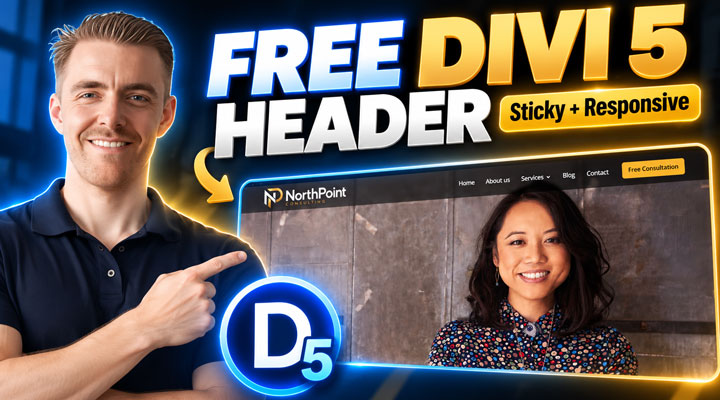
A well-designed header can make a big difference to the overall appearance of your website. But creating a custom header that looks great on desktop and mobile can take quite a bit of time.
In this tutorial, I'll show you how to add a modern, transparent sticky header to your Divi 5 website using a ready-made layout that you can download for free.
The header features a transparent navigation bar with a subtle glass effect, an announcement bar, sticky navigation that changes its background color when scrolling, and a fully responsive mobile menu with collapsible submenus.
And the best part? Everything is built using Divi 5's native settings. No custom CSS, JavaScript, or additional plugins are required.
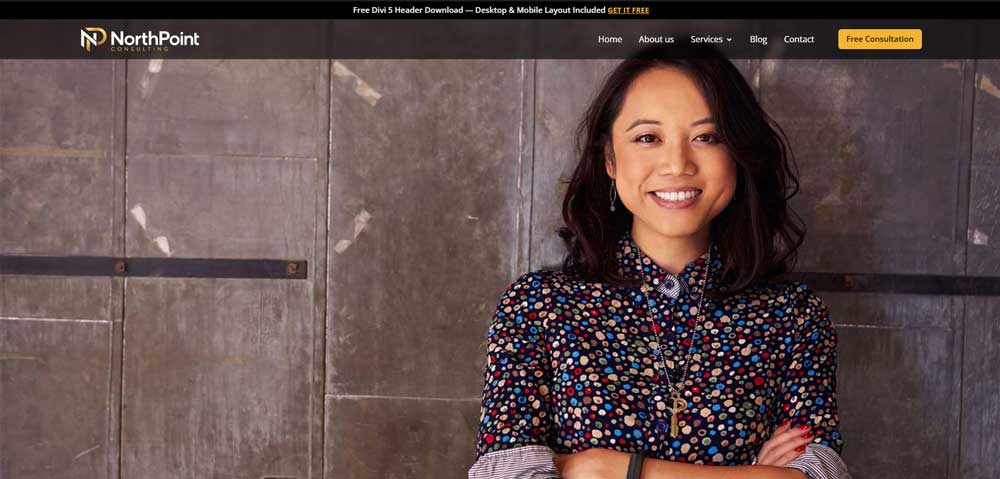
Rather than building the entire header from scratch, we'll import the finished layout and walk through the most important settings so you can easily customize it for your own website.
Watch the Divi 5 Header Tutorial
In the video above, I'll walk you through importing the header, replacing the demo content, and customizing the transparent, sticky, and mobile navigation settings.
If you prefer written instructions, you can follow the steps below.
Download the Free Divi 5 Header Layout
I've made the complete header layout available as a free download, so you don't have to build it yourself.
Here's what you'll get:
- Transparent navigation: A modern header that overlays your page content.
- Sticky scrolling effect: The navigation stays visible and changes to a solid background when scrolling.
- Announcement bar: A customizable area for promotions, announcements, or important links.
- Responsive mobile design: A mobile-friendly layout with a full-width CTA button.
- Collapsible mobile menu: Expandable submenus with customizable arrow icons.
The layout is available through my Free Membership.
Download the Free Divi 5 Header
If you already have an account, simply log in and navigate to Resources From Tutorials, where you'll find the header download.
You can access it here: Free Membership Downloads.
Requirements: You'll need WordPress with Divi 5 installed to use this layout. The header download and Free Membership are free, but Divi itself is a paid Elegant Themes product.
How to Import the Header into Divi 5
Once you've downloaded the header, the next step is to import it into your website.
Step 1: Extract the Download
First, locate the downloaded ZIP file on your computer and extract its contents.
Inside the extracted folder, you'll find the JSON file containing the Divi 5 header layout.
This JSON file is what we'll import into WordPress.
Step 2: Import the Layout into the Divi Library
From your WordPress dashboard, navigate to Divi → Divi Library.
Click the Import & Export button at the top of the page.
In the popup, switch to the Import tab and select the JSON file from your extracted download folder.
Click Import Divi Builder Layouts.
Once the import is complete, the header will be available in your Divi Library.
An important detail is that this download contains a saved Divi Section, rather than a complete Theme Builder template. That's why we're importing it into the Divi Library first.
Step 3: Add the Header to the Theme Builder
Next, navigate to Divi → Theme Builder.
Under the Default Website Template, select Add Global Header → Build Global Header.
If you already have a custom global header, I recommend backing it up before making any changes.
Once the Visual Builder opens, click the option to add a new section.
Choose Add From Library, find the imported header layout, and select Use This Section.
The complete header design will now appear in the Visual Builder, ready to customize.
Step 4: Remove the Empty Section
There's one small thing we need to clean up before continuing.
When creating a new Global Header, Divi may add an empty section automatically.
Because our imported header uses absolute positioning, that original empty section isn't always easy to see in the normal Visual Builder view.
The easiest way to find it is to switch to Wireframe View.
Here, you'll be able to identify the original empty section and the newly imported header.
Delete the empty section, making sure to keep your imported header intact.
You can then return to the normal builder view and save your changes.
Remember to save both the header layout and your Theme Builder changes.
Customize the Header for Your Website
Now that the header is installed, let's replace the demo content with your own branding.
Change the Logo and Navigation Menu
Open the Menu module settings inside the Visual Builder.
Under the Content tab, locate the Logo settings and replace the NorthPoint demo logo with your own.
You can also adjust its size and spacing to match your website.
Next, choose the WordPress navigation menu you want to display.
If you haven't created a menu yet, you can set one up in your WordPress dashboard before returning to the Divi Builder.
Customize the Announcement Bar
At the top of the header, you'll find an announcement bar.
This is simply a Text module, so you can easily change the message and link.
For example, you could use it to promote a special offer, announce a new product, or direct visitors to an important page.
If you don't need an announcement bar, you can remove it from the layout.
Update the Call-to-Action Button
The navigation also includes a call-to-action button.
Open the Button module to change the text and destination URL.
You can customize its background color, typography, padding, and other styling options to match your website.
In the included design, I've used a contrasting gold button that stands out against the dark navigation background.
How the Transparent Header Works in Divi 5
One of the most interesting parts of this design is the transparent header.
Instead of having a solid navigation bar that pushes your page content down, the header overlaps the hero section behind it.
This creates a more integrated appearance, especially when using a large background image.
Absolute Positioning
If you open the Layers panel in the Visual Builder, you'll see the structure of the header.
The main section contains the announcement bar and navigation elements.
Open the main Section settings and navigate to Advanced → Position.
Here, I've set the Position to Absolute.
This removes the header section from the normal document flow, allowing it to sit over the content underneath it.
Combined with a transparent navigation background, this creates the overlay effect.
It's important to make sure your hero section provides enough contrast so the logo and navigation links remain easy to read.
Add a Glass Effect With Backdrop Blur
Another detail that makes this header look more polished is the subtle glass effect.
The navigation uses a semi-transparent dark background combined with backdrop blur.
To adjust this effect, open the relevant navigation element's settings and navigate to Design → Filters.
Find the Backdrop Blur setting.
For this layout, I've used a value of 5px.
Backdrop blur softens the content behind the navigation without blurring the logo, menu links, or button.
You can experiment with different values depending on the effect you're looking for.
For example, increasing the blur creates a more frosted appearance, while lowering it allows more background detail to show through.
Create a Sticky Header That Changes Background Color
The header also includes a sticky scrolling effect.
When visitors scroll down the page, the announcement bar disappears while the main navigation stays visible at the top.
At the same time, the transparent navigation background changes to a solid black color.
The nice thing is that this doesn't require any custom JavaScript.
Enable Sticky Navigation
Open the Layers panel and select the row containing the main navigation.
Navigate to Advanced → Scroll Effects.
Under Sticky Position, select Stick to Top.
This keeps the navigation visible when visitors scroll down the page.
Because we're applying the sticky effect to the navigation row rather than the entire announcement bar, the announcement doesn't remain fixed at the top.
Change the Background When Scrolling
Next, open the navigation row's Background settings.
Divi allows you to style elements differently in their normal and sticky states.
In this design, the normal state uses a semi-transparent dark background, while the sticky state uses a solid black background.
When the navigation becomes sticky, Divi automatically applies the sticky background color.
You can customize both colors to match your own website.

This combination of transparent and sticky styling gives the header a more refined appearance while helping keep the navigation readable as visitors move through your pages.
Customize the Responsive Mobile Header
Of course, a header also needs to work properly on smaller screens.
For this layout, I've created a mobile design with the logo and hamburger icon positioned next to each other, followed by a full-width call-to-action button.
The spacing, sizing, and alignment can be adjusted independently using Divi 5's responsive controls.
Enable Collapsible Mobile Submenus
One particularly useful feature is Divi 5's built-in Collapsible Mobile Menu settings.
Open the Menu module and navigate to Design → Collapsible Mobile Menu.
Here, you can enable expandable submenus instead of displaying every submenu item at once.
You can also customize:
- The icons used to open and close submenus.
- The size and color of those icons.
- Whether parent menu links remain active.
In the example header, clicking the arrow next to Services expands the submenu, revealing additional links.
Clicking it again collapses the submenu.
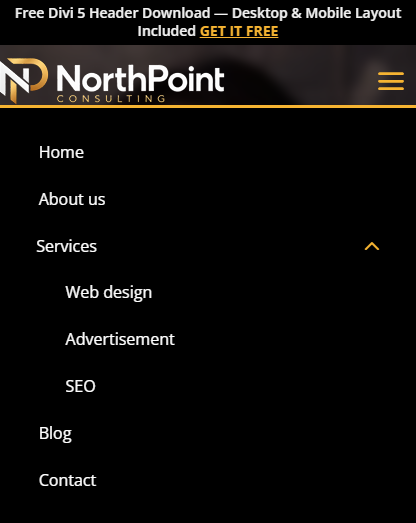
This helps keep the mobile menu clean and organized, especially on websites with multiple navigation levels.
Before finishing, I recommend testing the header on desktop, tablet, and mobile screen sizes to make sure everything fits correctly.
Frequently Asked Questions
Yes. You can download the complete header layout through my Free Membership at no cost. You'll need a free account to access the download and a licensed installation of Divi 5 to use it.
No. The transparent positioning, sticky navigation, backdrop blur, responsive styling, and collapsible mobile menu are all configured using Divi 5's built-in settings.
Absolutely. You can replace the demo logo, choose your WordPress menu, edit the announcement text, and customize the button and navigation styling directly inside the Divi Visual Builder.
Final Thoughts
Creating a professional header doesn't have to mean starting from scratch.
With this free Divi 5 header layout, you get a ready-made design with transparent navigation, sticky scrolling effects, and a responsive mobile menu that you can customize for your own website.
And because everything uses native Divi 5 functionality, you can make changes without needing additional plugins or custom code.
Get the Free Divi 5 Header Layout
Simply create a free account, open Resources From Tutorials, and download the layout.
If you're looking for more ready-made Divi designs, you can also explore my All Access Membership.
Have any questions about installing or customizing the header? Feel free to leave a comment below!