The Divi 5 Command Center is a powerful feature that lets you build and edit websites using keyboard commands instead of constantly clicking through menus.
You can use it to find settings, switch between different builder views, insert modules, duplicate elements, and even create complete layouts using just a few commands.
But there's one thing worth mentioning: the Command Center isn't necessarily beginner-friendly, especially when you start combining commands.
In this tutorial, I'll walk you through the basics before moving on to more advanced features. I'll also show you when the Command Center can genuinely save time and when the regular Visual Builder might still be the easier option.
I've also created a free Divi 5 Command Center Cheat Sheet with the essential shortcuts, operators, and workflow tips. You can download it through my Free Membership.
To follow the tutorial, you'll need Divi 5 installed. The cheat sheet is free with registration, but Divi itself is not included.
What Is the Divi 5 Command Center?
The Command Center is a searchable command interface built directly into the Divi 5 Visual Builder.
Instead of opening multiple panels to find a particular setting or action, you can simply search for what you need.
For example, you can use the Command Center to:
- Add modules, rows, and sections.
- Find specific module settings.
- Switch between desktop, tablet, and mobile views.
- Duplicate, delete, copy, or reset elements.
- Navigate to different pages or the Theme Builder.
- Apply existing design presets.
- Build layouts using combined commands.
You don't need to memorize every available command. In fact, I recommend starting with just a few before exploring the more advanced options.
How to Open the Divi 5 Command Center
There are two ways to open the Command Center.
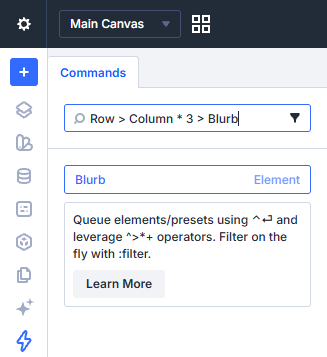
You can click the lightning bolt icon in the left toolbar of the Visual Builder.
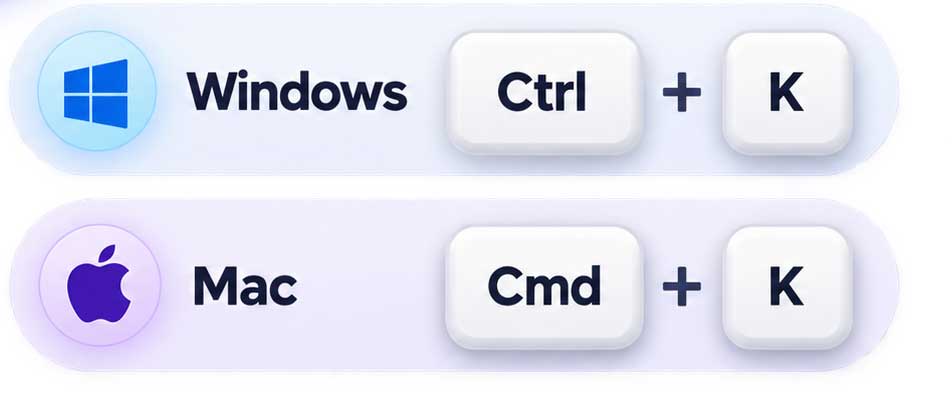
Or you can use a keyboard shortcut:
| Operating system | Shortcut |
|---|---|
| Windows | Ctrl + K |
| Mac | Cmd + K |
Once the Command Center opens, you'll see a search field and a list of available commands.
Start typing, and Divi automatically filters the results.
When you find the command you want to use, select it and press Enter (Return on Mac) to execute it.
That's the basic workflow.
1. Find Module Settings Faster
One of the easiest ways to use the Command Center is to jump directly to a particular setting.
If you've worked with Divi for a while, you'll know that some modules have quite a few settings spread across different tabs and option groups.
Let's say you want to change a Blurb module's animation settings.
Normally, you'd select the Blurb, open its settings, navigate to the appropriate tab, and locate the Animation options.
With the Command Center, you can take a shortcut.
- Select the Blurb module you want to edit.
- Open the Command Center with
Ctrl/Cmd + K. - Type
animation. - Select the matching command and press Enter.
Divi opens the Animation settings for the selected module.
You can follow the same approach for other settings, including borders and box shadows.
Tip: Make sure you've selected the correct element before running the command. The Command Center uses your current selection to determine which settings to open.
2. Switch Between Builder Views
Another convenient feature is switching between different builder views.
For example, imagine you're designing a page in Desktop view and want to check its mobile layout.
Instead of using the responsive controls in the toolbar, you can open the Command Center and search for phone.
Select the matching command, press Enter, and Divi switches to Phone view.
You can also search for other views, including:
- Desktop
- Tablet
- Phone
- Wireframe
- Preview
I particularly like the ability to switch to Wireframe view when working with more complicated layouts.
Of course, the buttons in the Visual Builder are already easy to access. Whether searching is actually faster depends on how you prefer to work.
If you like keeping your hands on the keyboard, though, these commands are useful.
3. Add Modules Without Using the Add Module Button
The Command Center can also insert elements directly into your page.
Let's say you want to add a Button module underneath an existing Blurb.
Select the Blurb, open the Command Center, and search for Button.
Select the corresponding element command and press Enter.
Divi inserts a new Button module after the selected Blurb.
You can use the same approach for other elements, including Text modules, Images, Rows, and Sections. If you’re adding a post feed, my Divi 5 Blog Module vs Loop Builder comparison can help you decide which setup to build.
Understanding the Insertion Point
There's something important to understand here.
The element you've selected affects where new modules are inserted.
For example:
- If a module is selected, Divi adds the new module after it.
- If a row is selected, Divi can create a new row to contain the module.
- If a section is selected, Divi can create a new section and row for the module.
This can be confusing when you're first getting started.
If a module appears somewhere you didn't expect, check which element was selected before you executed the command.
4. How Command Queuing Works in Divi 5
Now we're getting into one of the more powerful features of the Command Center.
Normally, pressing Enter executes a command immediately.
But Divi also lets you queue multiple commands and execute them together.
This means you can create several elements, nest them inside one another, and build more complicated layouts without inserting everything manually.
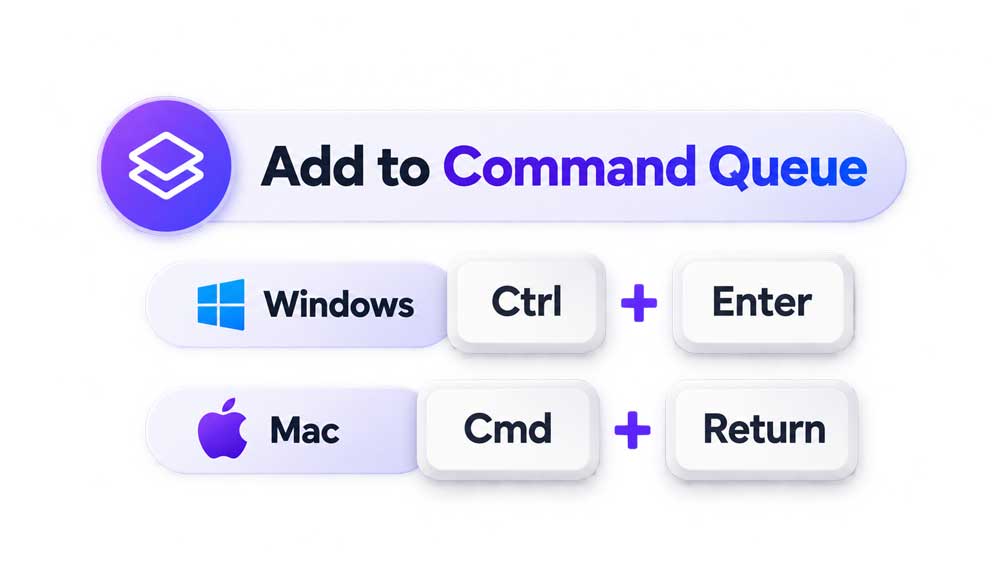
Here are the keyboard shortcuts:
| Action | Windows | Mac |
|---|---|---|
| Execute command | Enter | Return |
| Add to queue | Ctrl + Enter | Cmd + Return |
A Simple Example
Let's say you want to add two Button modules.
- Open the Command Center.
- Search for
Button. - Press
Ctrl/Cmd + Enterto queue the Button. - Type
*2. - Press Enter to execute the command.
Divi creates two Button modules.
The asterisk is called the multiply operator. It tells Divi how many copies of an element to create.
And that's just one of several operators you can use.
5. Understanding Command Center Operators
Operators let you control how elements are inserted and combined.
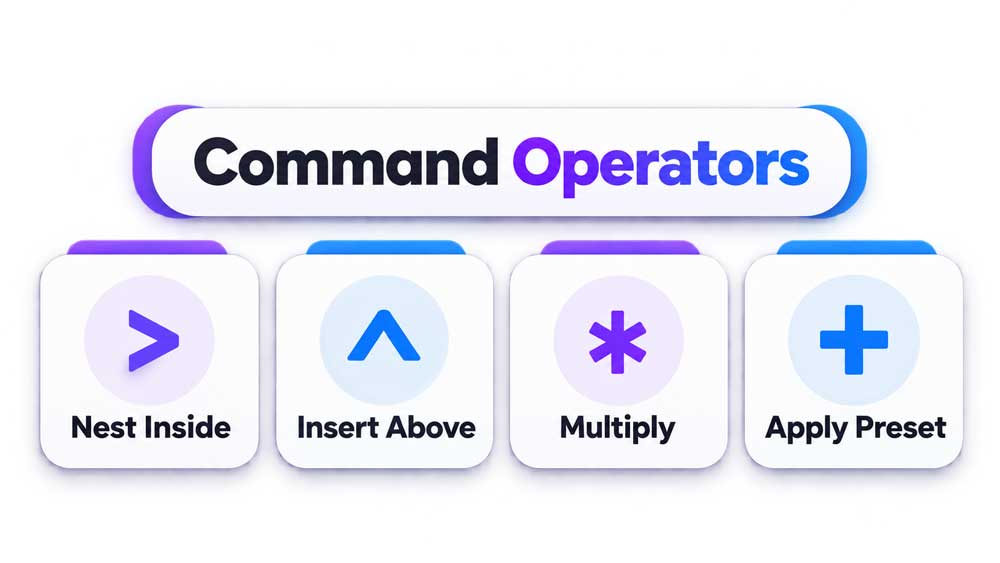
Here are the four main operators worth knowing:
| Operator | Purpose |
|---|---|
> | Nest the next element inside the previous element |
* | Create multiple copies of an element |
^ | Insert an element above the current selection |
+ | Apply an existing preset to an element |
For example, using > between a Row and Column tells Divi that the Column belongs inside the Row.
Combining that with *3 lets you create three columns.
The + operator is particularly useful when working with Divi 5's design presets.
You can apply existing Element or Option Group Presets while creating your layout, helping you maintain consistent styling. If you’re still setting up your design system, here’s when to use variables, presets, and components in Divi 5.
Important: The presets must already exist on your website. The Command Center doesn't automatically create them for you.
6. Build a Three-Column Layout Using Commands
Let's combine what we've learned.
In the video, I demonstrate how to create a row with three columns, each containing a Blurb module.
The finished command sequence looks like this:
Row > Column *3 > Blurb
Here's what each part means:
- Row: Create a new row.
> Column: Add a column inside the row.*3: Create three columns.> Blurb: Add a Blurb module inside each column.
How to Build It
Start by selecting the section where you want to insert the layout.
- Open the Command Center and search for
Row. - Select the Row command and press
Ctrl/Cmd + Enterto queue it. - Type
> Column, select Column, and pressCtrl/Cmd + Enteragain. - Type
*3 > Blurb. - Select the Blurb command and press Enter to execute the completed queue.
Divi creates a new row containing three columns, each with a Blurb module.
One important tip: Don't try to paste the entire sequence into the search field as one ordinary search. Build the queue step by step, selecting the matching element commands as you go.
I found this part a little confusing initially, so it's worth practicing on a test page.
Once your modules have been created, you can add titles, descriptions, icons, and styling using the normal Visual Builder.
The Command Center creates the structure, but the Blurbs will still have their default content and appearance unless you apply existing presets.
That's where the combination of command queuing and a reusable design system can become particularly helpful.
7. More Useful Command Center Features
Besides inserting elements and navigating settings, the Command Center includes several editing commands.
Duplicate Elements
Select an element, open the Command Center, and search for duplicate.
Execute the corresponding command to create a copy of the selected element, including its content and styling. Working with several elements at once? My Divi 5 Multi-Select and Bulk Editing tutorial shows how to duplicate, move, and style them together.
Delete Elements
You can also search for delete to remove the currently selected element.
This provides another way to perform actions normally available through the Visual Builder's controls or right-click menu.
Reset Settings
Searching for reset displays reset-related commands.
Be careful which option you choose, since resetting styles and removing assigned presets are different actions.
Filter Command Results
When the Command Center returns too many results, you can filter them by category.
For example, typing:
:modal
filters the available commands to the Modal category.
This can make it easier to find specific builder tools without scrolling through unrelated results.
Is the Divi 5 Command Center Worth Using?
After spending some time with the Command Center, I think it's a useful addition to Divi 5, but I wouldn't recommend trying to use it for everything.
For straightforward tasks, clicking a nearby button in the Visual Builder can still be faster.
And when you start using command queuing and operators, there's definitely a learning curve.
My recommendation is to start with three things:
- Opening the Command Center with
Ctrl/Cmd + K. - Searching for specific module settings.
- Switching between builder views.
Once those become familiar, start experimenting with inserting elements and combining commands.
If you regularly build similar layouts or use design presets, that's where the more advanced commands can become especially valuable.
The Command Center works best as an addition to your existing workflow, not necessarily a replacement for the Visual Builder.
Download the Free Divi 5 Command Center Cheat Sheet
To make the Command Center easier to learn, I've created a free reference guide you can keep next to you while working in Divi.
The Divi 5 Command Center Cheat Sheet includes:
- Essential keyboard shortcuts for Windows and Mac.
- An overview of the available command categories.
- The four main command operators.
- How command queuing works.
- Tips for finding commands and improving your workflow.
Download the Free Command Center Cheat Sheet
Create a free account to access the download under Resources From Tutorials.
The PDF is free with registration. You'll need Divi 5 separately to use the features covered in this tutorial.
Continue Learning Divi 5
If you're still getting comfortable with Divi 5, you might also like my free Divi 5 Essentials Course.
It covers the Visual Builder, sections, rows, modules, responsive design, and other important features.
And if you'd rather get a head start with professionally designed layouts, you can also explore my Divi child themes and layout packs. These are paid products; check individual product compatibility before using them with Divi 5.
Final Thoughts
The Divi 5 Command Center is one of those features that becomes more useful the more you experiment with it.
You don't have to memorize dozens of commands to benefit from it.
Start with the basics, learn the shortcuts you use most often, and gradually introduce command queuing into your workflow.
And remember, the goal isn't to avoid using your mouse entirely. It's to make building websites with Divi a little faster and more convenient.
Have you tried the Command Center yet? Let me know in the comments whether you prefer using commands or sticking with the regular Visual Builder.
Happy building!