

You can create a Divi popup with a free plugin and a reusable Divi layout. This guide covers two free plugin walkthroughs and three paid alternatives.
Use the free layout as a starting point, or build your own popup with the manual steps below. Choose a trigger and a clear purpose before adding a popup to your Divi website, such as opening extra information from a button or offering a relevant download.
With this easy-to-follow guide, I will provide 5 options to create a popup for Divi. For the 2 free options, I provide step-by-step instructions plus a free popup layout that you can download and use.
I also included 3 popular premium popup plugins with additional features and triggers.
Divi version note: The screenshots below show the classic Divi interface. Current Popups for Divi and Popup Maker releases document Divi 5 support, but that does not mean every older screen or downloaded layout is identical in Divi 5. Use the version guidance under each method. Divi 5 also has a native Canvases and Interactions popup workflow if you prefer to build without a popup plugin.
Table of contents
- What is a Divi popup?
- Download my free popup layout [FREE DOWNLOAD]
- Option 1: Popups for Divi plugin (free)
- Option 2: Popup Maker plugin (free)
- Option 3: Divi Overlays plugin (premium)
- Option 4: Divi Supreme Pro (premium)
- Option 5: Divi Modal Popup Plugin (premium)
- Conclusion
What is a Divi popup?
A popup is a type of window that appears on top of the content that is currently being displayed in an application or website. It often contains additional information, options, or interactive elements to enhance the user experience.
Popups are caused by user events, like clicking a link or button, and can be used to display alerts and confirmations. They can also be used to show additional content like menus across different pages and sections of a website.
Why should you use a Divi popup?
Divi Pop-ups can be a great way for businesses to promote their products and services, as well as capture customer information. Pop-ups are often used by sites to advertise special offers or discounts, collect contact details for newsletters or surveys, or announce new features.
They are particularly effective because they can be targeted to specific audiences and appear directly on the page where the user is browsing. Pop-ups also have the advantage of appearing quickly and automatically, so they can act as an attention-grabber and encourage users to take action. With careful design and optimization, pop-ups can help maximize conversions and boost sales.
Popup triggers
A popup trigger is an event that causes a popup window to appear on a computer or mobile device. Popup triggers can be events such as loading a page, clicking on a link, hovering over an image, or entering or leaving a website.
Popups are often used to display advertisements, notifications, or other types of messages. They can also be used to prompt the user for additional information or to confirm an action before it's taken. Popup triggers can help website owners to personalize content and increase engagement with their visitors.
Download my free popup layout
You can use this popup layout as a starting point for the free popup plugins option 1 and 2.
Download the free popup layout through the Member Area: log in with your website account or create a free account.
After signing in, open the Free Membership area and find the popup layout under Resources from Tutorials. The membership block below is another way to reach the account sign-up.
Create a free account
Get Access to All of My Free Resources
Join the free membership and start downloading my layout packs
Join the Free Membership
How to install this popup layout
After downloading the popup layout folder you have to unzip it first. Inside you will find the JSON file that you have to upload into your Divi Library.
The layout supplies the popup’s design. You still need to install and configure the plugin for the method you choose; importing the JSON alone does not create an opening trigger.
Go to Divi > Divi Library in your WordPress dashboard. Click on Import & Export button and upload the popup JSON file.
From here follow the steps under option 1 or 2, depending on the popup plugin of your choice.
Option 1: Popups for Divi plugin (free)
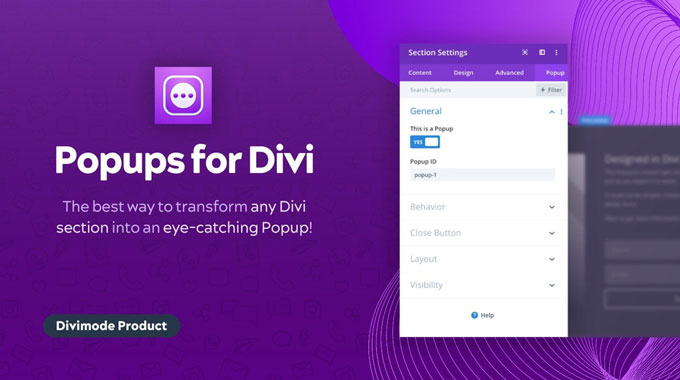
With the Popups for Divi builder plugin, you can easily create popups right in the Visual Builder! Craft stunning and unique popups out of any Divi Section. You can have an unlimited number of popups on a single page, and you control how they appear with buttons or links.
Step 1: Download and install this plugin
You can download this plugin for free on the Elegant Themes marketplace.
After downloading head over to your WordPress dashboard and go to Plugins and start uploading and activating this plugin.
Step 2: Import the free popup layout
Open a page where you want to place a popup (if you want to use a popup on your entire website then you can also add this popup in your Global Footer in Divi > Theme Builder).
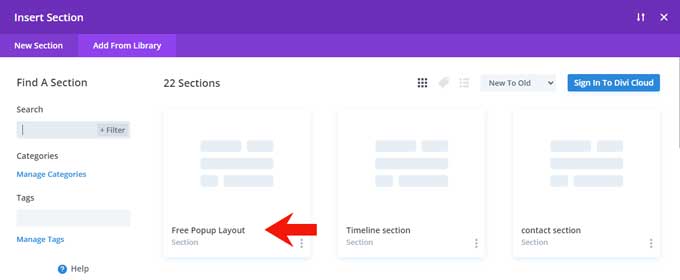
Click on the + symbol to add a new section and then switch to the Add from library tab.
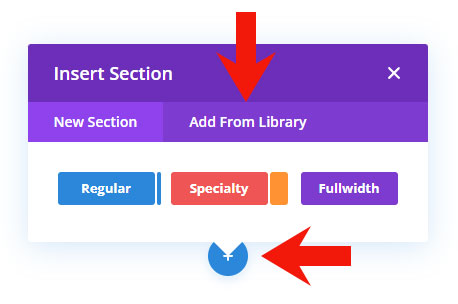
From your library import the popup layout.
Step 3: Popup settings
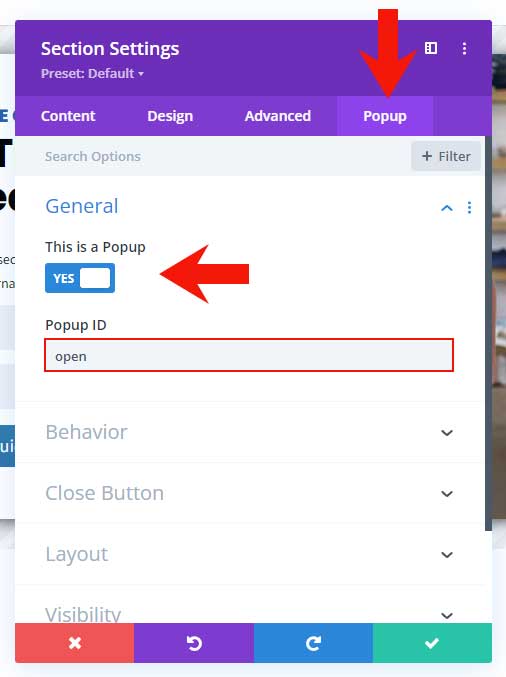
Open the popup section and find the plugin’s Popup or Popup Settings panel, depending on the Divi version. Enable This is a Popup. The plugin’s current listing and changelog document the Divi 5 panel and compatibility updates.
If you want to add a link trigger for your popup then you can fill in the field Popup ID.
Step 4: Choose a trigger option
This walkthrough uses the plugin’s two built-in trigger choices: a link/button and desktop exit intent. Additional scripted behavior is outside these steps.
Exit-intent
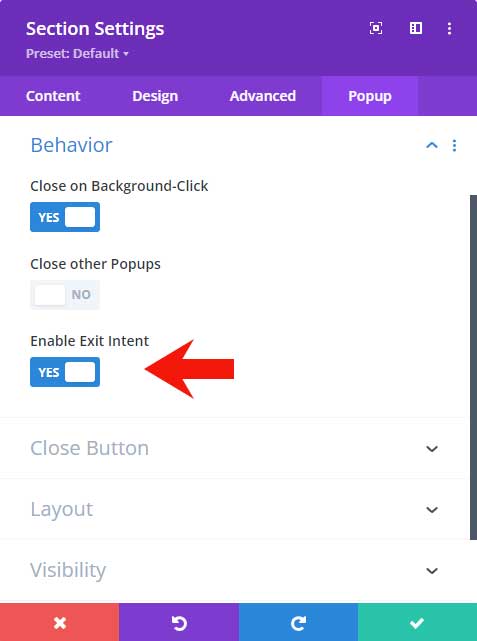
Open the Behavior tab and you can enable Exit Intent here.
Link trigger
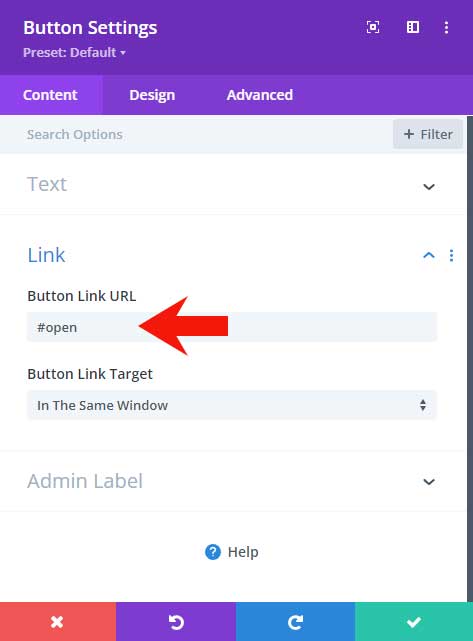
In the previous step, I added a popup ID and we can use that to trigger the popup with a link or button.
I have used "open" as a popup ID and if I place that in the link field of a button with # in front then the popup will open when clicking on this button.
Pros of this popup plugin
- It's a free plugin
- Exit-intent trigger (for most plugins this is a paid option)
- Can build popups from the visual builder
- This plugin is very easy to use
Cons of this popup plugin
- Only 2 triggers are available
- No option to not display a popup when it is already been seen
Option 2: Popup Maker plugin (free)
Popup Maker is a general WordPress popup plugin with a documented Divi integration. The screenshots below show the earlier editing workflow. Its current Divi integration also supports Visual Builder editing.
Step 1: Install and activate Popup Maker
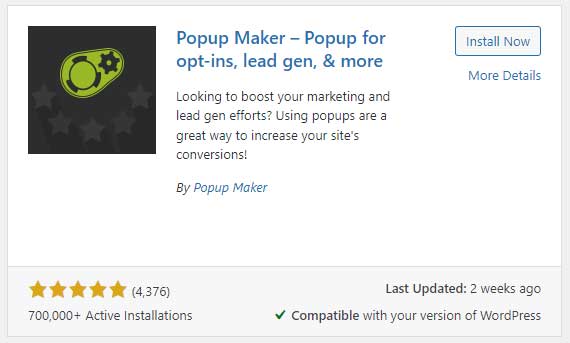
In your WordPress dashboard navigate to Plugins > Add New and search for Popup Maker. Then install and activate this plugin.
Step 2: Import the layout
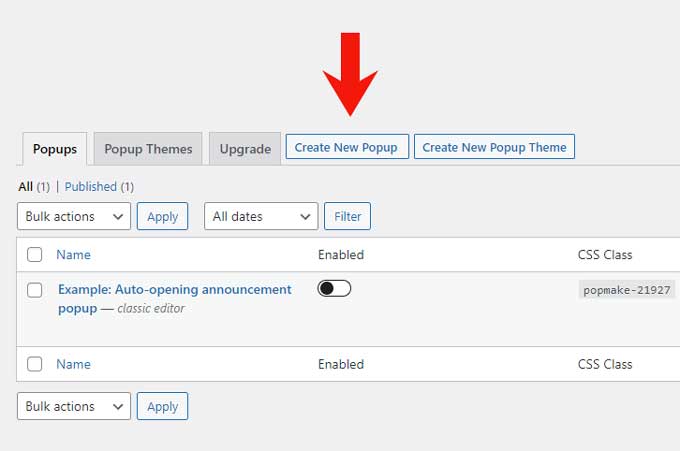
Go to Popup Maker and click on "Create New Popup".
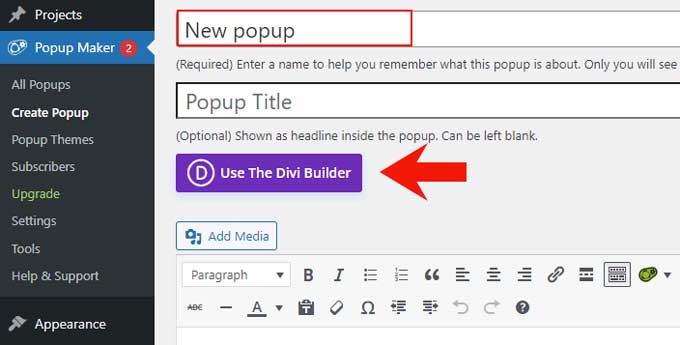
Give your popup a name and save it. In Divi 4, use the classic-compatible builder route shown below. In Divi 5, choose the popup’s Divi editing action to open the front-end Visual Builder, build or import your layout there, and save.
From here click on the blue + icon and go to the "Add From Library" tab.
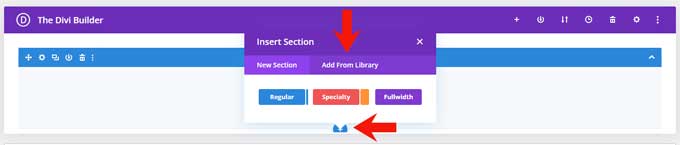
Then choose the Popup layout.
Step 3: Add a trigger
Return to the Popup Maker popup settings to configure delivery. In the earlier editor shown below these appear beneath the builder. Click Add New Trigger.
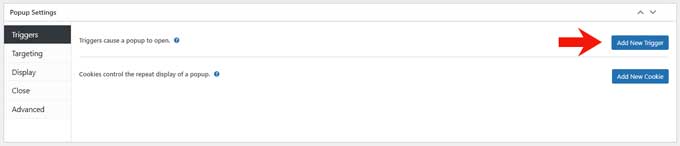
You can create a trigger in the next window. The trigger options you have are link click, time delay, and form submission.
You can also add a cookie so that visitors do not see the popup again after triggering it.
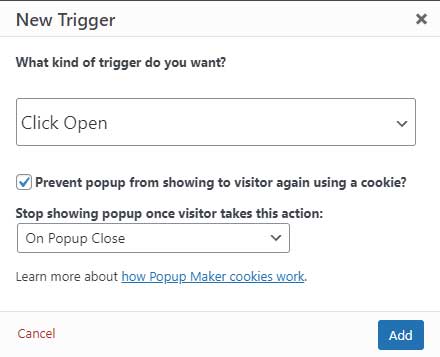
When you also added a cookie it will look something like this depending on what you have chosen.
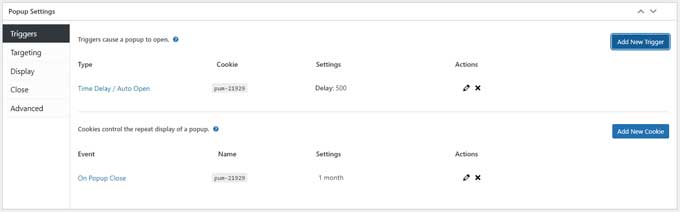
Step 4: Targeting options
By default, the popup will show on all the pages of your website. Under the targeting tab, you can use the condition options to show the popup in a specific segment or page of your website.
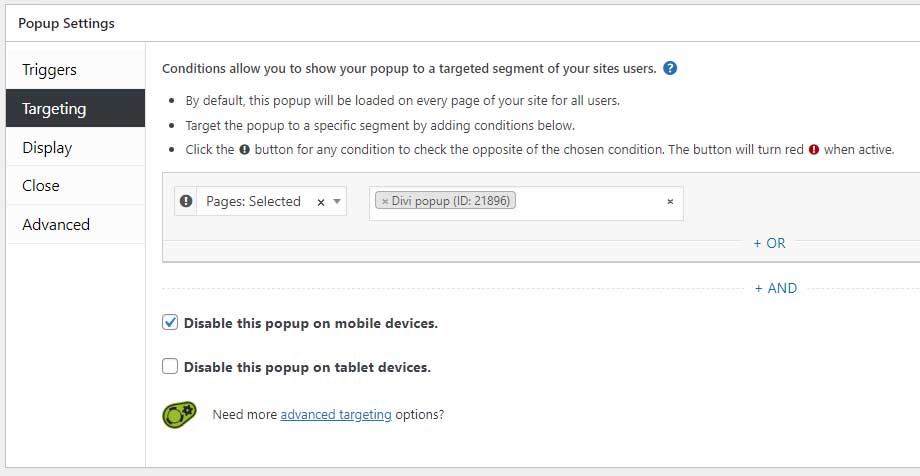
Step 5: Display options
Under Display go to the Appearance tab and set the Popup Theme to "Content Only - For use with page builders or block editor"
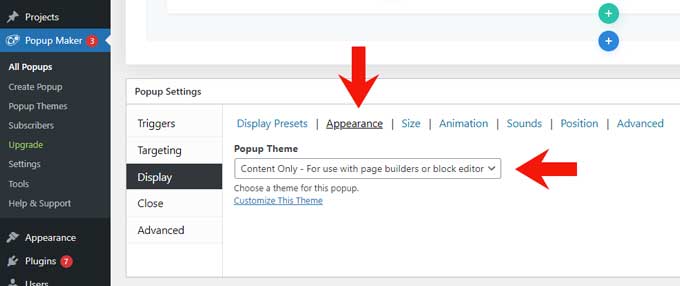
When you have done this you can publish your new popup.
Pros of this popup plugin
- It's a free plugin
- Can set a cookie for the popups
- Can build popups from the Divi Builder
Cons of this popup plugin
- Exit-intent trigger only available in the premium version
- The older screenshots differ from the current Divi 5 Visual Builder workflow; use the version-specific integration instructions above.
Option 3: Divi Overlays plugin (premium)
Divi Overlays by Divi Life is the first, popup builder for Divi! Since its launch in 2017, customers have been using Divi Overlays to generate amazing popups and overlays. Many customers are satisfied with the product, highlighting its effectiveness in creating engaging visuals for their websites.
Popup overlay templates
Divi Overlays makes it easy to add beautiful popups to your website. This Divi Builder plugin comes with a range of ready-made templates that you can simply import into your site using Divi's portability feature.
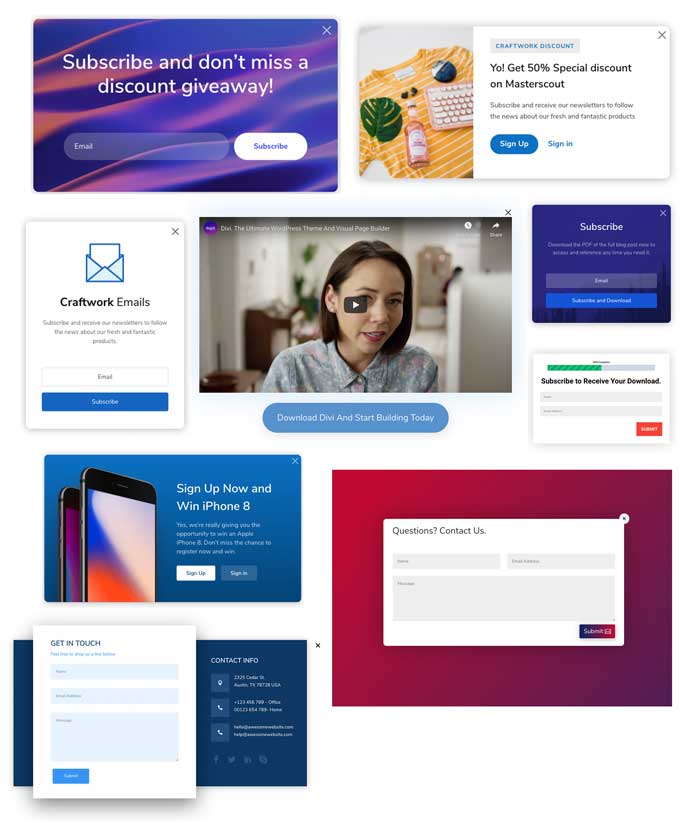
This means no need for coding or design skills, just a few clicks and you're all set! With Divi Overlays, you can choose from an extensive selection of eye-catching popup designs -- including modals, flyouts, fullscreen overlays, and more. Plus, each template is fully customizable so you can make it your own.
Divi Overlays triggers
Divi Overlays allows users to customize when their popup is triggered, depending on the user's activity. There are four options: Timed Delay, Scroll Delay, Exit Intent, and URL Triggers.
Timed Delay
These trigger when a user has been on the page for a specific amount of time.
Scroll Delay
These triggers when a user has scrolled down a certain percentage of the page.
Exit Intent
Desktop exit intent responds to pointer movement toward leaving the viewport. It does not guarantee detection of every back-button action, tab close or departure, and should not be assumed to behave the same way on touch screens.
URL/Link
These triggers allow users to trigger their popups directly from an external page or email.
Display
With Divi Overlays, it is simple to choose which pages, categories, and tags your popup will appear on. You can select just the ones you want your popup to display on or you can choose “all” and exclude certain areas.
This gives you more control over where your popup appears, allowing you to tailor it to meet the needs of your website's visitors. You also have the option to easily customize when, where, and how often your popup displays so that it is always visible at the right time and place.
Animations
Divi Overlays includes interactive animations, giving the popup an eye-catching effect, as well as a fully customizable close button, allowing users to customize the look and feel of their popup.
Additionally, Divi Overlays also includes a cookie setting feature that prevents the popup from appearing again after it has already been dismissed by the user.
Option 4: Divi Supreme Pro (premium)
Divi Supreme is a collection of Divi modules and extensions. Its popup extension is one option if you already use the plugin or need its other features too.
You'll be able to customize each popup to perfectly match your website's style, giving it a more polished look without any extra effort. The extension also offers advanced features such as animations and sophisticated designs that are sure to make your popup stand out from the rest.
Popup Animation
The popup extension provides entrance and exit animations. Choose an effect that suits the content and does not make the popup difficult to read or dismiss.
An animation can draw attention, but it does not by itself establish that more visitors will subscribe or buy. Check the result on your own site.
Additionally, Popup Animation provides users with the ability to customize their popups by creating unique transitions between entrance and exit animations, making it easier to create a memorable experience for customers.
Popup Trigger
The Divi Supreme popup module comes with different trigger options for your popup.
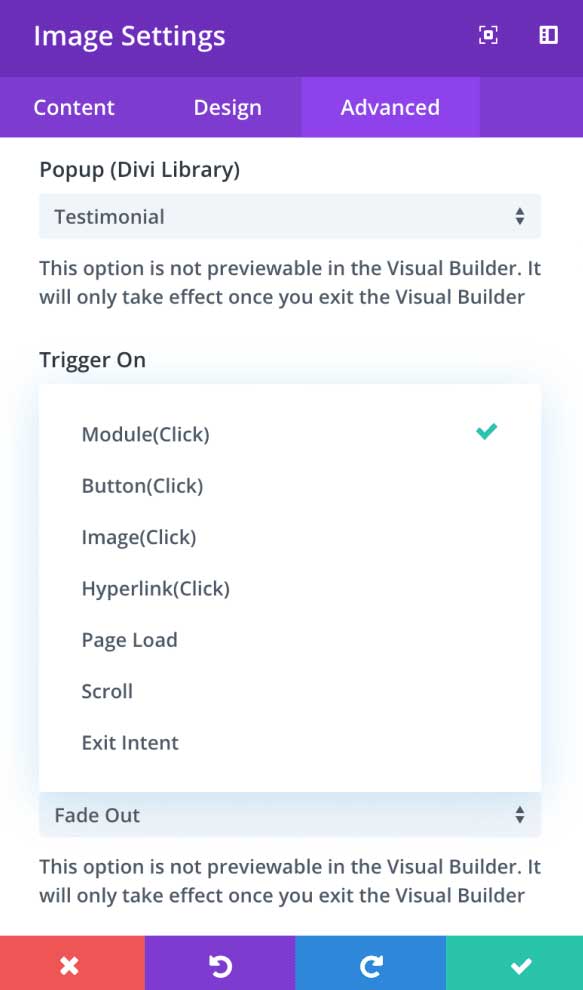
Page Load or Scroll
Popup windows can be set to appear to a visitor after they have been on the site for a certain amount of time. This can be triggered either when the page is first loaded, or when the user scrolls down to a particular part of the page.
The popup will appear with a delay, allowing visitors to get familiar with their environment before seeing it. By adding this timed delay, popups can be used in a subtle manner, without interrupting the user's experience on the website.
Hyperlinks or button
Rather than having your visitors navigate away from the current page when they click on a link, you can create a pop-up window that will open when they click on a hyperlink or button. This allows them to stay on the same page while viewing content related to the hyperlink without having to leave the page or open a new tab.
Pop-ups are an effective way of providing additional information about a topic or displaying other content such as images and videos without taking your visitors away from their current location. You can also use pop-ups for special promotions or offers, such as discounts and giveaways.
Exit Intent
Exit intent uses pointer movement as a signal that a desktop visitor may leave. It cannot reliably predict every departure or be treated as the same trigger on a touch-only device.
This provides an opportunity for you to make an impression on them and capture their attention just before they decide to leave. You may use exit intent to offer discounts, advertise promotions, direct visitors to other related pages on your site, or provide any kind of relevant call-to-action that would be beneficial for your business.
Cookie Consent
Divi Supreme has a walkthrough for a cookie-notice popup. Its display cookie and expiry settings can control when that popup appears again. Those settings are separate from controlling which tracking scripts run.
Do not assume that adding a notice and an Accept button automatically blocks or manages other plugins’ tracking scripts. If that is your goal, check how those scripts are controlled as a separate implementation task.
Option 5: Divi Modal Popup Plugin (premium)
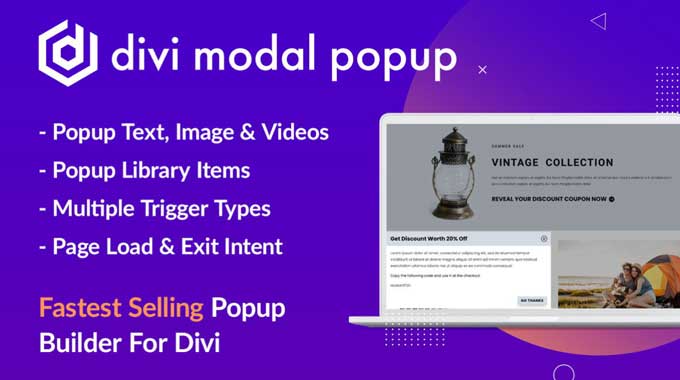
Divi Modal Popup is a plugin that allows Divi users to easily create stunning and eye-catching popups in no time. The plugin contains a variety of customization options, from choosing the size and position of the popup to selecting animations, background, HTML and CSS elements, and more.
With Divi Modal Popup, users can craft attractive and engaging popups for their websites in just a few clicks. It offers an easy-to-use interface with a wide range of features that allow users to customize their popups entirely according to their needs. Plus, its drag-and-drop builder makes creating beautiful popups a breeze.
Whether it’s for promotional messages or informational content, Divi Modal Popup is the perfect choice for quickly creating amazing popups without any coding knowledge.
Multiple Popup Triggers
With the trigger options of the Divi modal popup module, you can create a popup window that will appear either when a user interacts with it or after a certain amount of time has passed since they landed on the page.
This is useful as it can help to provide users with additional information, such as promotions and news, while they are browsing your website.
Furthermore, the timeframe for when the popup appears can be adjusted to best suit the needs of your site – whether it’s immediately upon landing on the page or after some time has passed.
Utilizing this feature gives you greater control over how and when users see important content.
On Click
The On-click trigger is a great way to let users explore a website without becoming overwhelmed. When this trigger is used, the Divi popup will only appear when someone clicks on a particular element.
This allows for an uninterrupted browsing session and ensures that visitors are not bombarded with too much information at once.
It also helps make the website more informative and distraction-free; providing users with more time to absorb content and better understand it.
On Page Load
Divi Modal Popup includes an On-Page load popup trigger that displays a popup as soon as the website has fully loaded. This is extremely important for such popups like the Cookies policy or other essential information that need to be seen right away. With this feature, users won't have to wait any longer than necessary before they can access the content they need.
Time Delay
Divi Modal Popup's Time Delay feature allows you to strategically display popups after a predetermined amount of time has elapsed, which can help capture the attention of users in a less intrusive manner. This way, customers are not immediately bombarded with offers and information upon arrival, allowing for a more pleasant experience.
On Scroll
You shouldn't show a Divi Popup Modal, such as a newsletter signup form, as soon as someone begins browsing your blog. Instead, it's more effective to display them at the end of the page when users are leaving.
By using an On-scroll trigger, you can determine exactly how far down the page your popup should appear—for example, after a user has scrolled 50% of the page. This ensures that people have had enough time to read and engage with your content before being presented with your call to action.
Exit Intent
Exit intent popups are a great way to display a message to users as they leave your website. With the Divi modal popup plugin, you can easily create an exit-intent popup using the popup module and its exit-intent trigger.
Configure the exit-intent trigger and test it on the devices your visitors use. Keep a button or link trigger available when visitors need to open the information themselves.
Conclusion
To recap, this post has provided you with five different options to create a stunning Divi popup on your website, two of which are free. By using the step-by-step tutorial and the included free download layout, you can easily create a high-quality popup without having any coding knowledge.
Before using a popup, test its opening trigger, close button, keyboard behavior and narrow-screen layout outside the builder. Check that visitors can reach its controls, dismiss it and return to the page. Test any frequency cookie and form-success behavior separately; a popup that opens is not proof that those features work.
Hi Mark, thanks for the free popup layout and guide. I’m having difficulty following the instructions. I’ve imported your popup layout into library and installed the Popup for Divi Plugin. You state ‘Open a page where you want to add the popup’ but then jump to instructions for it to work on entire website. I only want it to work on a single page. Can you tell me what to do after I open the single page please? The next logic instruction is ‘click on the + symbol’ but is this for a new section, row?? Thanks
Hi Moelwyn,
Yes, add a new section by clicking on the + symbol (see the image below that text.).