

When a Divi 5 preset change is missing, check one affected element before editing the preset again. Confirm the element uses the preset you changed, then look for a local value for the same setting, a responsive override, or a different state such as hover.
Start with the exact setting
Say you edit the padding in your Primary Button preset and five buttons change, but the hero button stays the same. Open the hero Button module. Check the applied Element Preset, then open the setting for the padding you changed. If the button has a local padding value, that can explain why it is different from the other buttons.
Open the Divi 5 Style Inspector to review the element’s settings and presets in one place. Compare it with a button that updated correctly. If the local value was accidental, reset just the affected field and check whether the preset appears as intended.
Check the source of the difference
| What you see | What to check first |
|---|---|
| None of the buttons update | Confirm you saved the intended preset and that the buttons use it. Similar preset names can make this easy to miss. |
| One button keeps its old look | Compare the applied preset and the local value on that module. |
| Only the phone layout looks wrong | Open the Responsive Editor for the exact field and compare its breakpoint values. |
| The design changes when you hover or scroll | Inspect the hover or sticky state if the field supports it. |
| Only the live page looks outdated | Save the layout and compare the page in a private window. Check cache and custom CSS if the mismatch remains. |
Check the type of preset you edited
An Element Preset applies to that element type. An Option Group Preset shares a narrower group of settings on compatible elements. If you change a border preset, check that the affected element uses that border group preset. If the preset references a design variable, check that you changed the value it actually references.
If you’re unsure which setting to edit, see when to use a variable, a preset, or a component in Divi 5.
Use a small comparison to confirm the fix
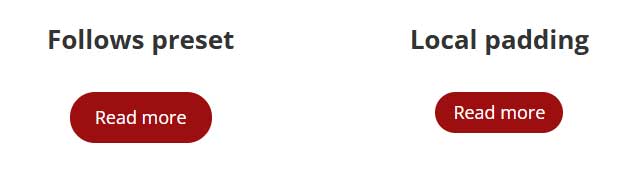
On a draft page, add two buttons and apply the same preset to both. Set one local padding value on the second button. Update the preset and compare the two. Then clear the local value on the second button and repeat the check. This gives you a simple way to isolate the preset before working on a design with several overrides.
For editing several elements at once, see my Divi 5 Multi-Select and Bulk Editing tutorial. If the change is meant for just one element, keep that exception local and label the element so another editor knows why it differs.