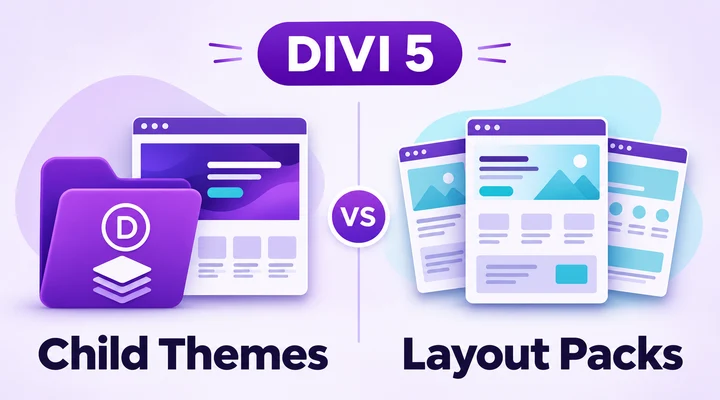
Choose a layout pack when you want a designed page or section you can add to a site that already works. Consider a pre-designed Divi child theme when you are starting a new site and want a coordinated design, templates, and any theme-level customizations that come with the package.
The important detail is what the download contains. A pack called a “layout pack” can include Theme Builder templates or site settings alongside page designs. A child theme can be a blank starting point or part of a complete demo package.
What changes when you install each one?
| What you are getting | How it is used | What to check |
|---|---|---|
| Divi child theme | Install and activate a WordPress theme that uses Divi as its parent. A premium package may have separate demo import steps. | Parent theme, required plugins, demo import instructions, and any custom code. |
| Page or section layout pack | Import the layouts into the appropriate Divi screen and load the designs where needed. | Whether the export is for the Visual Builder or Divi Library, and whether the import replaces current page content. |
| Theme Builder template | Import it into Divi Theme Builder and check which pages, posts, or archives it applies to. | Existing headers, footers, templates, and assignment rules. |
If you’ve already downloaded a pack, here’s where to import each Divi 5 layout file.
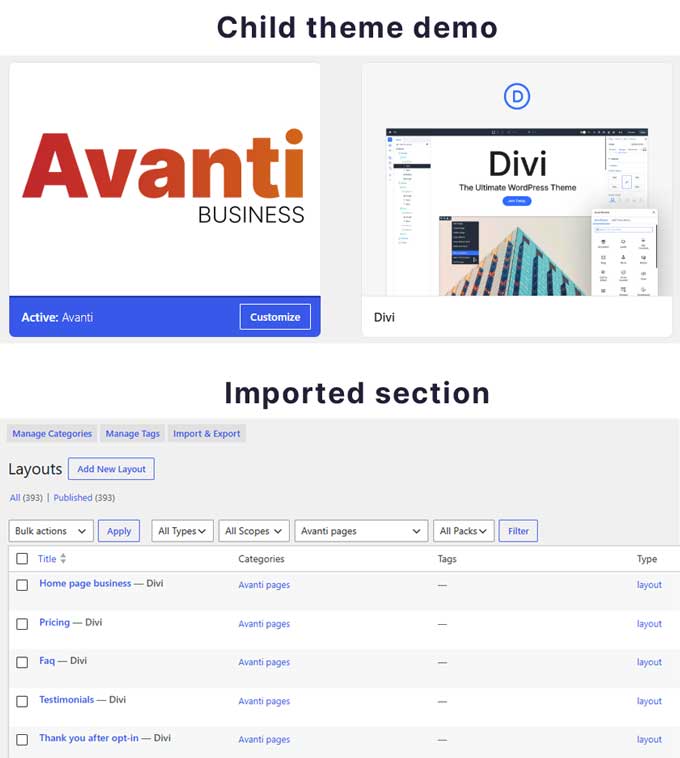
When a layout pack makes sense
Suppose you already have a working site for a local business and the client asks for a new services page. You want to keep the menu, footer, and the rest of the site. Start with a page or section layout, add it to a draft page, and replace the example content with the client’s services. You can compare it with the current site before making it live.
A layout pack can also be a starting point for a new website. Check the file list so you know which parts are included and which parts you will create yourself. My free Divi layouts page has examples you can browse. Check the individual layout’s Divi 5 requirements before downloading.
When a child theme makes sense
A pre-designed child theme is useful when you want to start with a coordinated site design. For example, a new contractor website might need a homepage, service pages, a project gallery, and a contact page that share one visual style. A complete demo can give you a common starting point for those pieces if the product includes them.
A blank child theme serves a different purpose. It gives you a place to keep theme-specific code and files when a project needs them. If that is what you need, see my guide to creating a Divi child theme.
Check these four things before you buy or import
- Divi 5 compatibility. Check the exact product and version. If it uses older Divi modules or third-party plugins, confirm the required versions and ask whether a conversion step is involved.
- What gets imported. Look for a file list that distinguishes the child theme ZIP, layouts, Theme Builder templates, and site settings.
- What the demo relies on. Confirm each required plugin and whether the demo photos are included or supplied as placeholders.
- Where you will test it. For an existing site, start on a staging copy. Check your current page content, menus, headers, and footers before moving the design to the live site.
Which should you choose for your project?
For a single page or section, start with a layout. For a new site that needs a consistent set of designs, compare the included pages and templates in a layout pack and a pre-designed child theme. For a shared header or post design, look for a Theme Builder template and check its assignments before saving.
If you regularly build different types of Divi websites, my All Access Membership brings my child themes and layout packs into one collection. Check the requirements of the particular design you plan to use.
See also Elegant Themes’ guide to managing Divi 5 Theme Builder templates for the template import and export workflow.