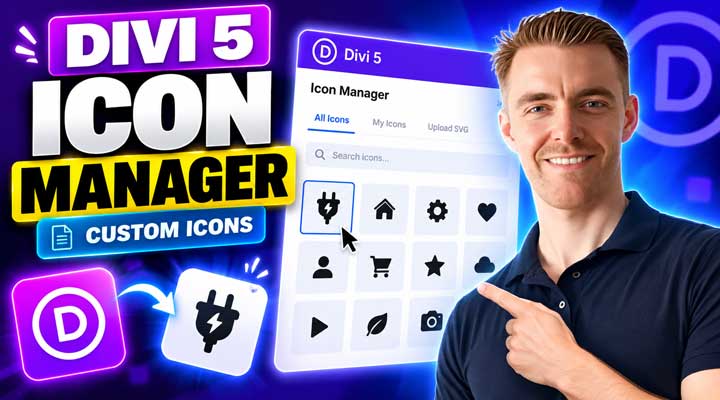
Divi 5 has a new Icon Manager that makes working with custom icons much easier. You can now import your own SVG icons, organize them into collections, and use them directly inside the Visual Builder without installing an additional SVG upload plugin.
In this tutorial, I'll show you how the Divi 5 Icon Manager works, how to create your own icon collections, and how to use custom SVG icons throughout your website.
We'll also create a simple home services section using five custom icons that you can download for free.
What you'll need: Divi 5 with the Icon Manager feature. The downloadable icon pack is free with a Free Membership account, but Divi 5 itself is required to follow the builder demonstration.
Watch the Divi 5 Icon Manager Tutorial
In the video, I'll walk you through the new icon picker, importing SVG files, managing collections, and reusing icons across different Divi modules.
What Is the Divi 5 Icon Manager?
The Icon Manager is a built-in feature in Divi 5 that lets you manage your website's icon library from one place.
Instead of relying only on the default Divi icons or uploading individual SVG files whenever you need them, you can create reusable collections of custom icons.
The Icon Manager allows you to:
- Import custom SVG icons and icon fonts.
- Create and organize icon collections.
- Search and filter icons inside the Visual Builder.
- Set default collections and hide collections you don't need.
- Export and import icon collections between Divi 5 websites.
The feature works site-wide, so your imported icons are available wherever Divi supports icon selection.
1. Explore the New Divi 5 Icon Picker
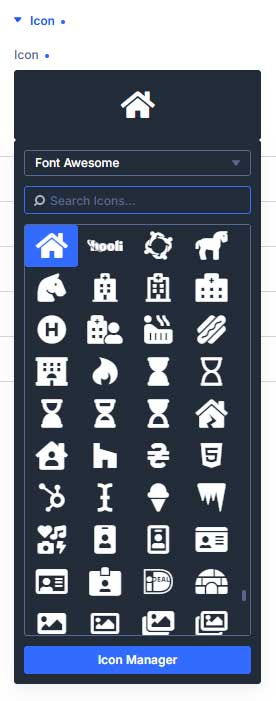
Divi 5 includes a redesigned icon picker that makes it easier to browse and select icons.
To access it, open the Visual Builder and add an Icon module to your page.
Inside the module settings, click the icon field to open the picker.
You can search for specific icons by name or browse the available collections using the dropdown.
The dropdown includes several options:
- All Collections: Browse icons from all enabled collections.
- Theme Icons: Access Divi's built-in icons and Font Awesome.
- Custom Icons: Browse collections you've created or imported.
- Styles: Filter built-in icons by style, such as solid or line icons.
For example, searching for "home" displays matching icons without having to scroll through the entire library.
At the bottom of the icon picker, you'll find the Icon Manager button. Click it to open the full icon management interface.
2. Create a Custom Icon Collection
Before importing any custom icons, I recommend creating a collection to keep them organized.
For this tutorial, we'll create a collection called Home Services Icons.
With the Icon Manager open, click New Collection.
Enter Home Services Icons in the collection name field and click Create.
Your new collection will appear alongside the default Divi Icons and Font Awesome collections.

At this point, the collection is empty.
You can create separate collections for different brands, client websites, or specific purposes. For example, you might have one collection for navigation icons and another for service icons.
This makes it much easier to find the right icon as your website grows.
3. Import Custom SVG Icons Into Divi 5
Now let's add some icons to our new collection.
For this example, I've prepared five SVG icons for a home services website:
- Roofing
- Electrical
- Landscaping
- Painting
- Plumbing
Download the Free Home Services SVG Icon Pack
You can download the same five icons used in this tutorial through my Free Membership.
[DOWNLOAD THE FREE SVG ICON PACK — DOWNLOAD]
If you don't have an account yet, you can register for Free Membership here.
The pack contains individual SVG files that you can import into Divi 5.
Import the Icons
Once you've downloaded the icon pack, extract the ZIP file on your computer.
Divi's Icon Manager supports SVG files, but you can't import ZIP files directly.
Next, return to the Icon Manager and click Import Icons.
In the Add Icons window, click Choose Icon Files and select the five SVG files.
You can import multiple SVG files in one operation, so there's no need to upload each icon separately.
Under Collection, select Home Services Icons.
Finally, click Import.
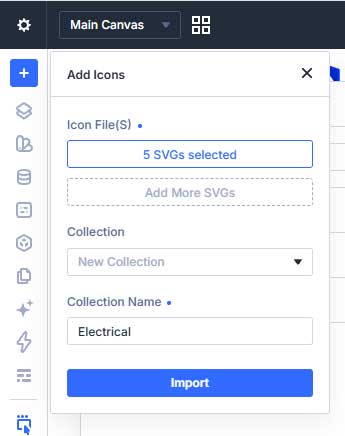
After the import finishes, all five icons will appear inside your collection.
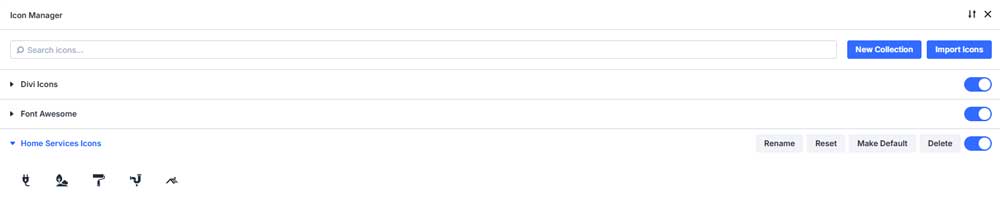
One of the biggest advantages is that Divi handles these SVG imports directly. You don't need an additional plugin to enable SVG uploads through the Icon Manager.
Because SVG files are vector graphics, they also remain sharp when scaled to different sizes.
4. Use Your Custom Icons in Divi 5
Now that our custom icons are imported, we can use them directly in the Visual Builder.
For this demonstration, I've prepared a simple services section with five Icon modules.
Let's start with the Roofing service.
Open its Icon module settings and click the icon field under the Content tab.
In the icon picker, open Custom Icons and choose our Home Services Icons collection.
You'll see all five icons we imported earlier.
Select the Roofing icon to add it to the module.
Under the Design tab, you can customize the icon's appearance, including its color and size.
Repeat the process for the other four services.
Here's the finished services section using our custom icons.

The icons are now part of our website's Divi icon library, so we can select them again in other modules without reuploading the SVG files.
5. Organize and Manage Icon Collections
The Icon Manager also provides several useful tools for keeping your icon library organized.
Select and Move Icons
Click an icon inside a collection to select it.
You can select multiple icons by holding Ctrl on Windows or Command on Mac while clicking. Shift selection is also supported.
Once you've selected one or more icons, you can move them to another collection or remove them from the current collection.
You can also right-click an icon to access its available actions.
Rename and Set Default Collections
When you expand a collection without selecting any icons, Divi displays its collection management controls.
You can rename the collection or make it your default.
Setting a default collection is particularly useful when you regularly use the same set of custom icons.
When you open an icon picker with no icon already selected, Divi starts with your default collection.
Hide Collections You Don't Need
Each collection has a visibility toggle.
You can disable collections you don't use regularly to keep the icon picker cleaner.
This is especially useful when building client websites where you want to limit the number of available icon choices.
Important: Hiding a collection doesn't remove icons that are already in use. Existing icons continue displaying on your pages.
6. Export and Import Icon Collections
If you build multiple Divi websites, you'll probably want to reuse your custom icons between projects.
The Icon Manager makes this possible through its built-in import and export feature.
Export Your Collection
Open the Icon Manager and click the Import & Export Icon Collections button in the window header.
Switch to the Export tab.
By default, all collections are selected, so deselect any collections you don't want to export.
For this example, we'll export only Home Services Icons.
Click Export Icon Collections to download the collection file.
The exported file includes the custom icon files, so you don't need to transfer the SVGs separately.
Import a Collection on Another Website
On your other Divi 5 website, open the Icon Manager and access the same Import & Export window.
Switch to the Import tab, choose your exported collection file, and import it.
Your collection will be added to the site's existing icon library.
This is a convenient way to reuse branding elements, service icons, and other custom icon sets across different client projects.
7. Use Custom Icons in Other Divi Modules
Custom icons aren't limited to the Icon module.
The new picker is also available in other Divi modules that support icons, including Button, Icon List, Blurb, and Accordion modules.
For example, you can enable an icon on a Button module and select one of your imported SVG icons.
You can then use the Button module's design settings to control the icon's appearance, position, and hover visibility.
This makes it easy to maintain a consistent visual style throughout your website.
Important Things to Know About Custom Icons
There are a few additional details worth keeping in mind.
SVG colors: Imported SVG icons use the icon color selected in Divi. If an SVG contains multiple colors, Divi displays it as a single-color icon.
Icon fonts: In addition to SVG files, the Icon Manager supports WOFF2, WOFF, TTF, and OTF icon fonts. You can import an SVG batch or a single icon font per import operation.
Existing icons: Hiding or removing icons from collections doesn't break icons already used on your pages. Imported SVG files also remain in your WordPress Media Library when removed from a collection.
Permissions: Creating, importing, and managing collections requires the appropriate WordPress and Divi permissions. If you can't see certain controls, check your user role and Divi Role Editor settings.
Frequently Asked Questions
Yes. Divi 5's Icon Manager supports importing SVG files directly. You don't need a separate SVG upload plugin when importing icons through this feature.
Yes. You can select multiple SVG files and import them together into an existing or new collection.
No. You'll need to extract the ZIP file first and select the individual SVG files.
Yes. The redesigned icon picker is available in multiple Divi modules, including Icon, Button, Blurb, Icon List, and Accordion.
Yes. Export your custom collection from one Divi 5 website and import the exported file into another website using the Icon Manager.
Icons already placed on your pages will continue displaying. Hiding or deleting a collection changes the icon library, but it doesn't automatically remove those icons from existing designs.
Not entirely. The Icon Manager provides a visual workflow for selecting built-in and custom icons inside Divi modules.
If you need icon font codes for custom CSS, you can still refer to my full list of Divi icon codes. That guide focuses on traditional icon code and CSS usage rather than the new Icon Manager.
Final Thoughts
The Icon Manager is a useful addition to Divi 5, particularly if you work with custom branding or regularly build websites for clients.
Having your icons organized into reusable collections makes it easier to keep a consistent design across your website and move icon sets between projects.
If you want to follow along with this tutorial, don't forget to download the free Home Services Icon Pack.
[GET THE 5 FREE SVG ICONS — DOWNLOAD]
You can also explore my free Divi layouts for more resources to use in your next website project.